

Passkeys
Sign in to Akoole Demo Mart with the same Face ID you use for your bank app.
-
Open Account settings
Go to Account (
/account/settings). Find Passkeys. If the browser cannot create one, the button explains that.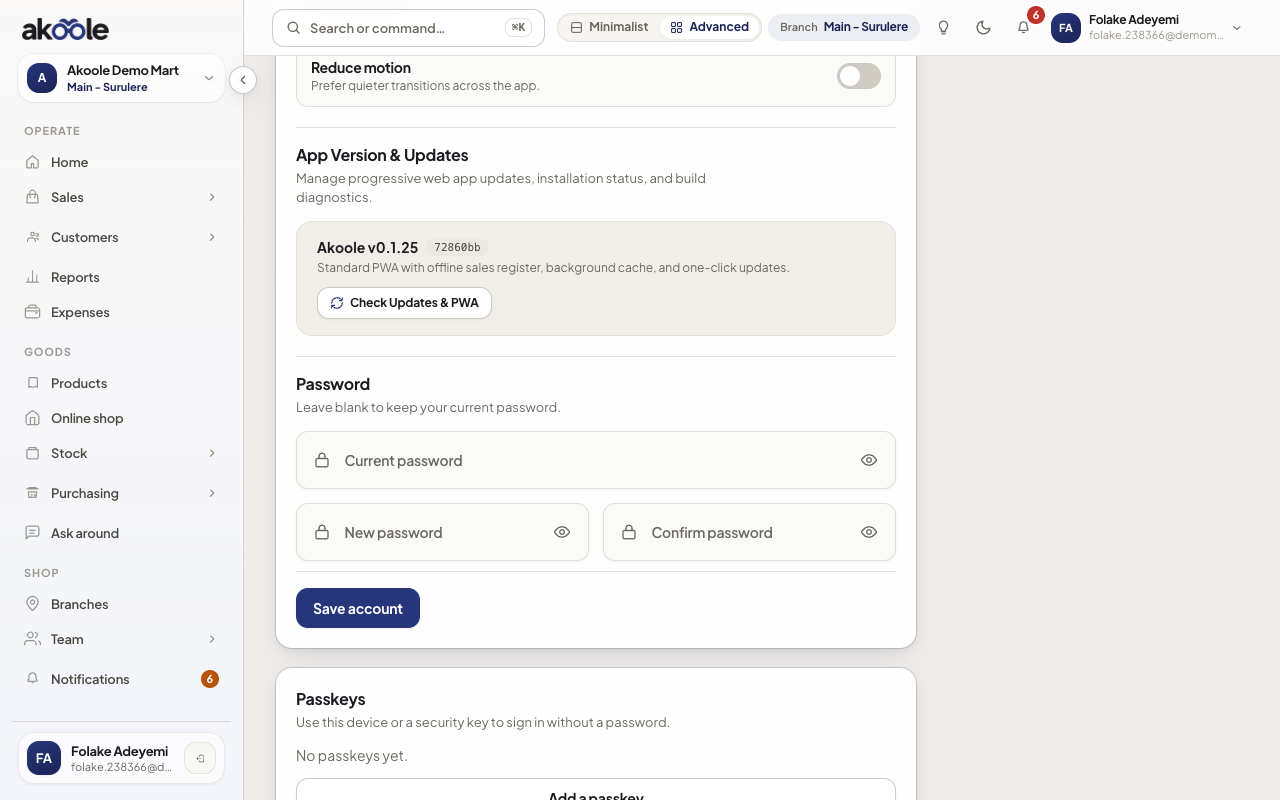
Your account: the Passkeys section with Add a passkey -
Create a passkey
Tap Add passkey and complete Face ID, fingerprint, or Windows Hello. Name it after the device (“iPhone Face ID”, “MacBook”).
-
Confirm it is listed
The new passkey appears with last-used empty until the next login. You can remove a lost device from this list.
-
Sign in with passkey next time
On
/login, choose Sign in with passkey. You still need a PIN when unlocking a shared POS after someone else locked it.Show screenshot
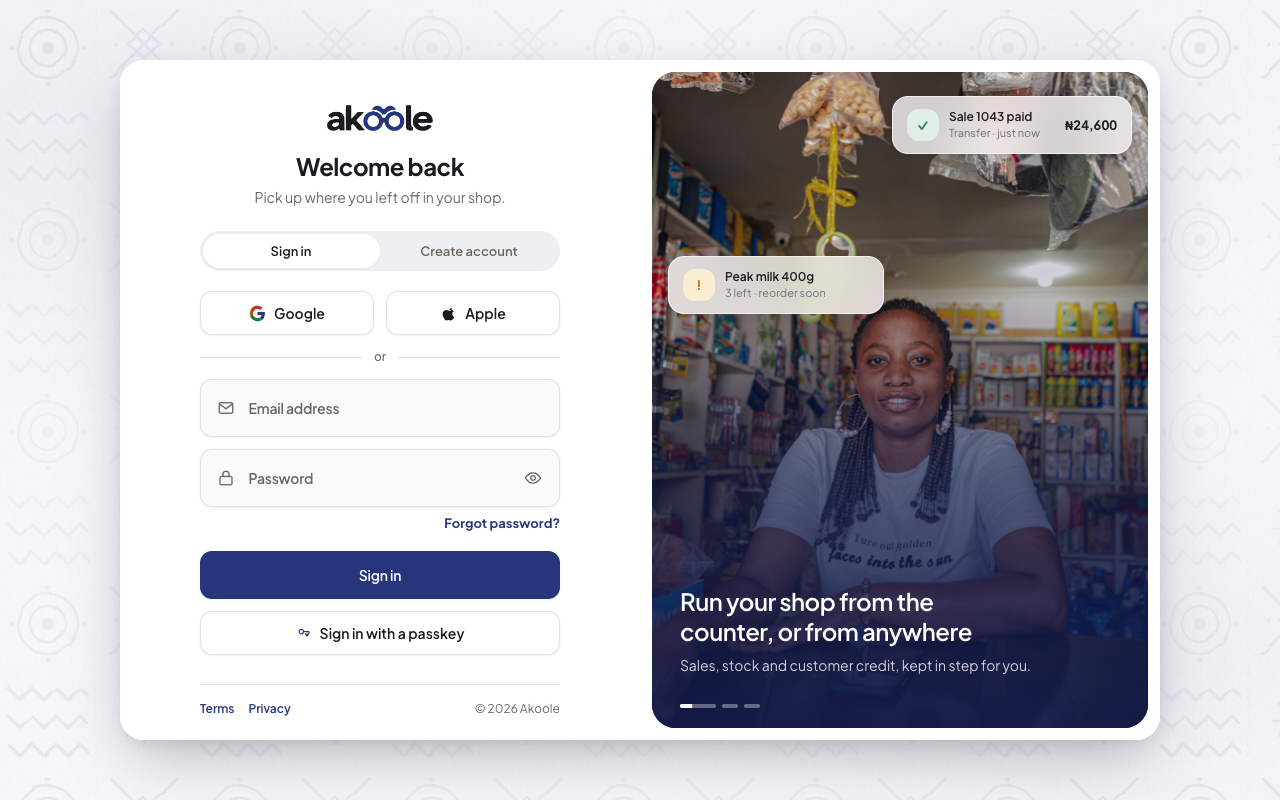
Sign in with email and password, or with a passkey
If something goes wrong
Section titled “If something goes wrong”Passkeys unavailable
Use a current Safari or Chrome, or add the passkey from a laptop then use iCloud/Google sync. Password + verified email still work.
Cancelled the system prompt
That is safe. Tap Add passkey again when you can complete biometrics.