

Home dashboard
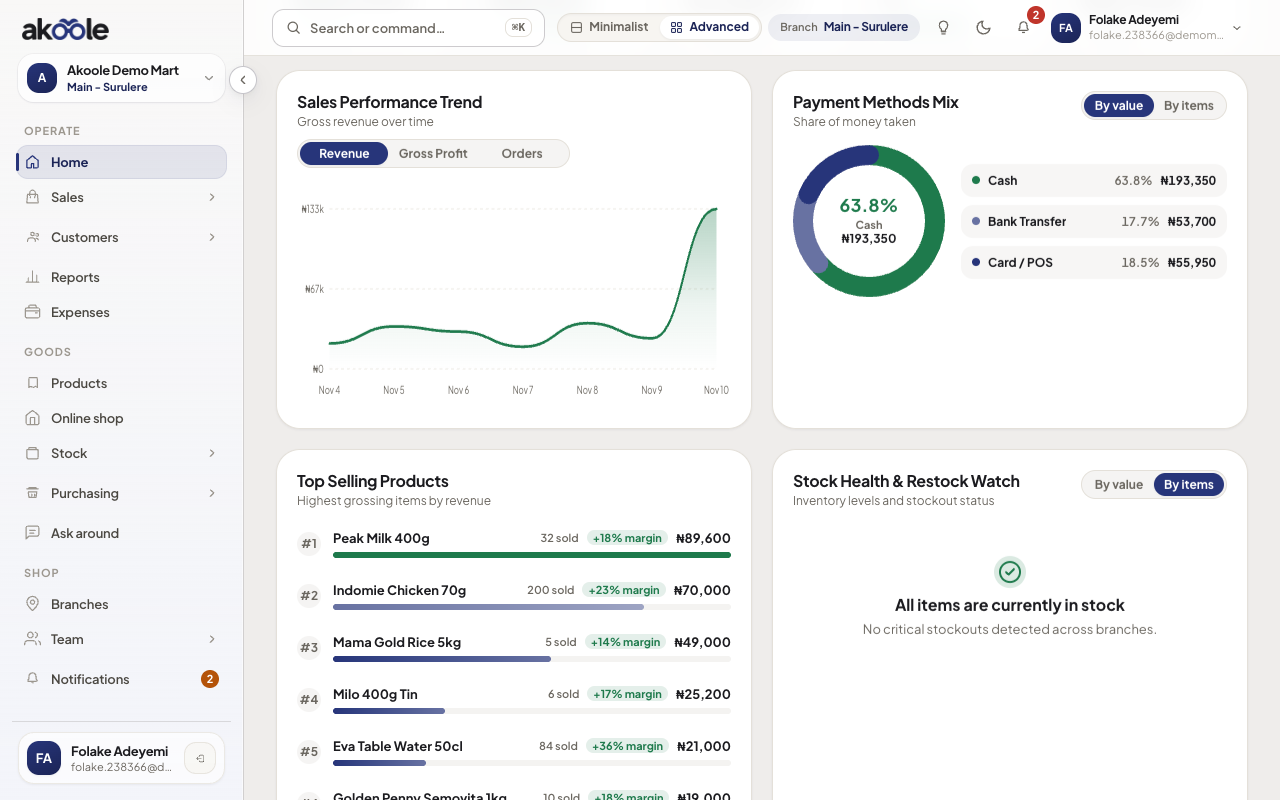
Use Home as your daily briefing: what needs attention, today’s sales, and your setup checklist. In Advanced mode you can choose which widgets show.
Before you start
Section titled “Before you start”Owners and managers. Cashiers in Minimalist see the launchpad instead of the widget grid.
- You have a shop. First product is optional but Home is richer after a sale.
- Switch to Advanced to customize widgets - see Minimalist vs Advanced.
-
Read the pulse
Home shows today’s sales and today’s gross profit in NGN, receipt count, and comparison to yesterday when there is history. Till short this week is a first-class card (closed shifts only). Tender mix (cash / transfer / POS / the book) tells you if the till is cash-heavy before you leave Surulere.
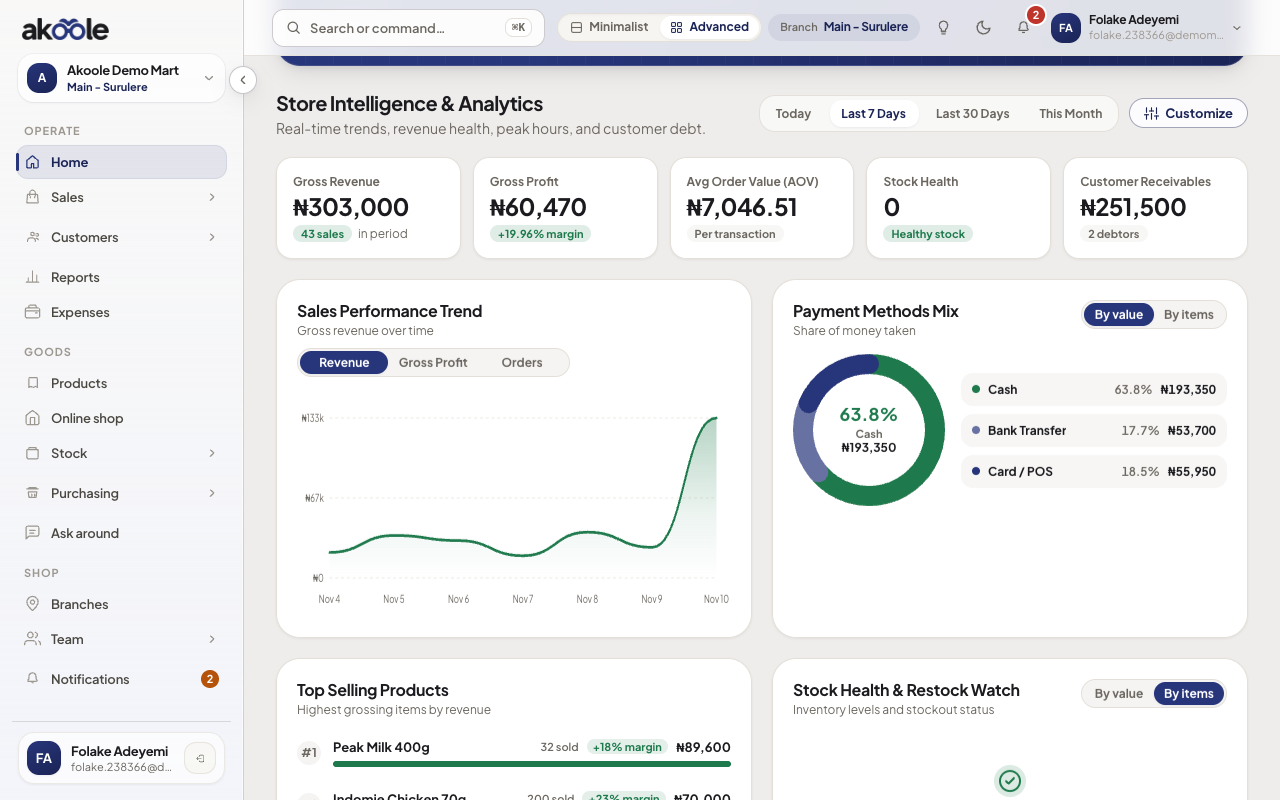
Store Intelligence cards: revenue, profit, order value, stock health and receivables -
Act on Needs attention
Owners and managers with Metrics and reports see a Needs attention strip (capped at five items). It is not another inventory report. Typical rows: SKUs whose list price is below booked cost, till short on closed shifts this week, overdue balances past 30 days, days of cover (likely to run out from recent sales - Create PO prefills a draft from that list; nothing is ordered until you submit), idle stock with no sale in 90 days (valued at last buy when you have a GRN, otherwise booked cost), stockouts, and weekly leakage counts (returns, discounted sales, haggled sales). Each row opens a page you already have - Products, Shifts, debt ageing, stock, a new PO, or Reports. Cashiers in Minimalist do not get this briefing.
Show screenshot
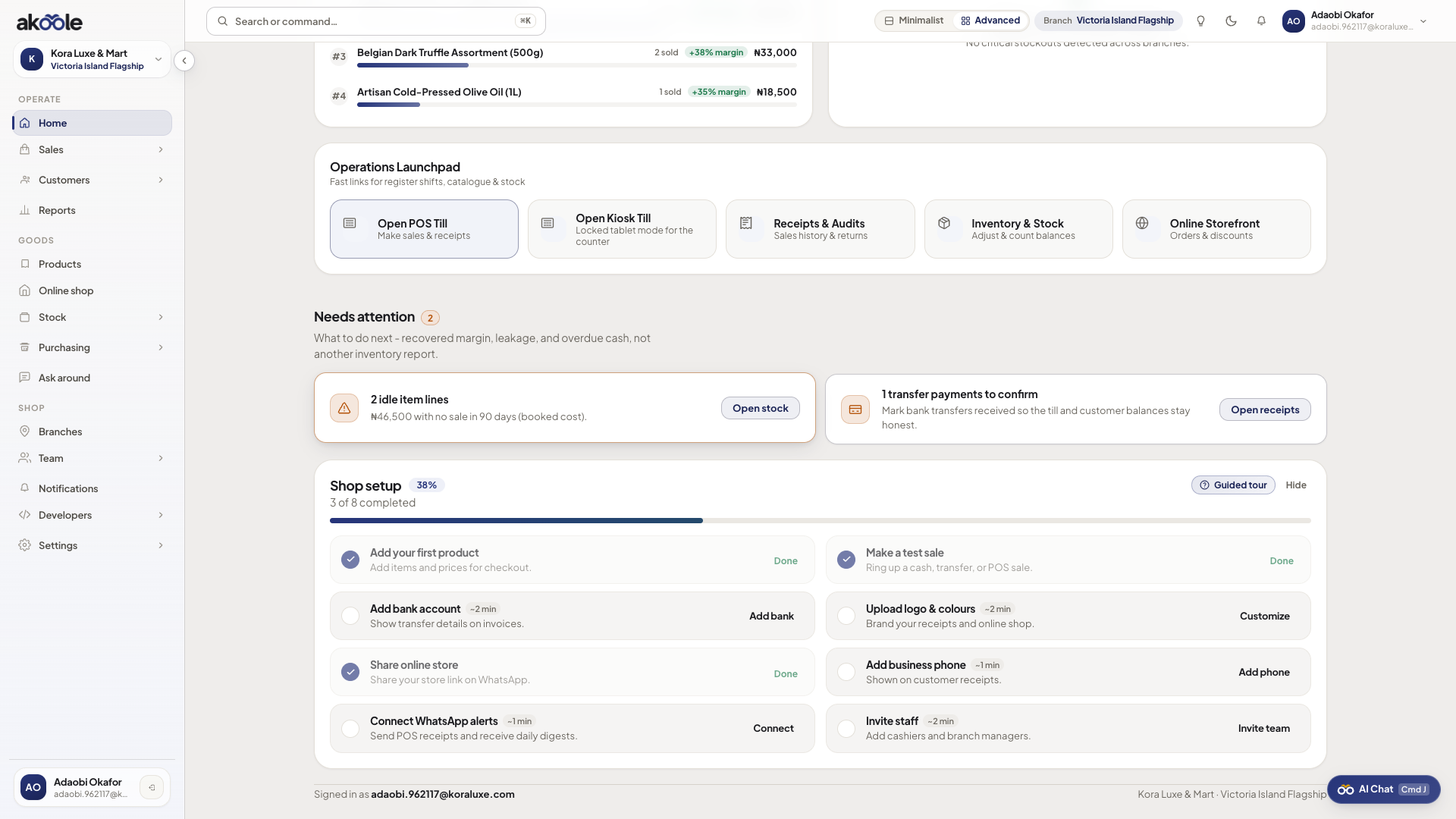
Home with Operations launchpad, Needs attention and shop setup -
Finish setting up
Until you dismiss it, Finish setting up tracks product, bank, brand, phone, and invite. After a first Starter sale, a compact Growth nudge for the online shop may appear. Both are dismissible.
-
Verify banner
If email is still unverified, a banner sits above the dashboard. You can sell; you cannot invite or check out billing. See Verify your email.
-
Customize widgets
In Advanced, click Customize (top right). Reorder with ▲ / ▼. Toggle full width vs half width. Add or remove widgets from the library (peak hours, payment mix, stock alerts, multi-branch rollup on plans that have it).
Industry-smart defaults appear for retail vs pharmacy vs electronics - you can still override.
Show screenshot
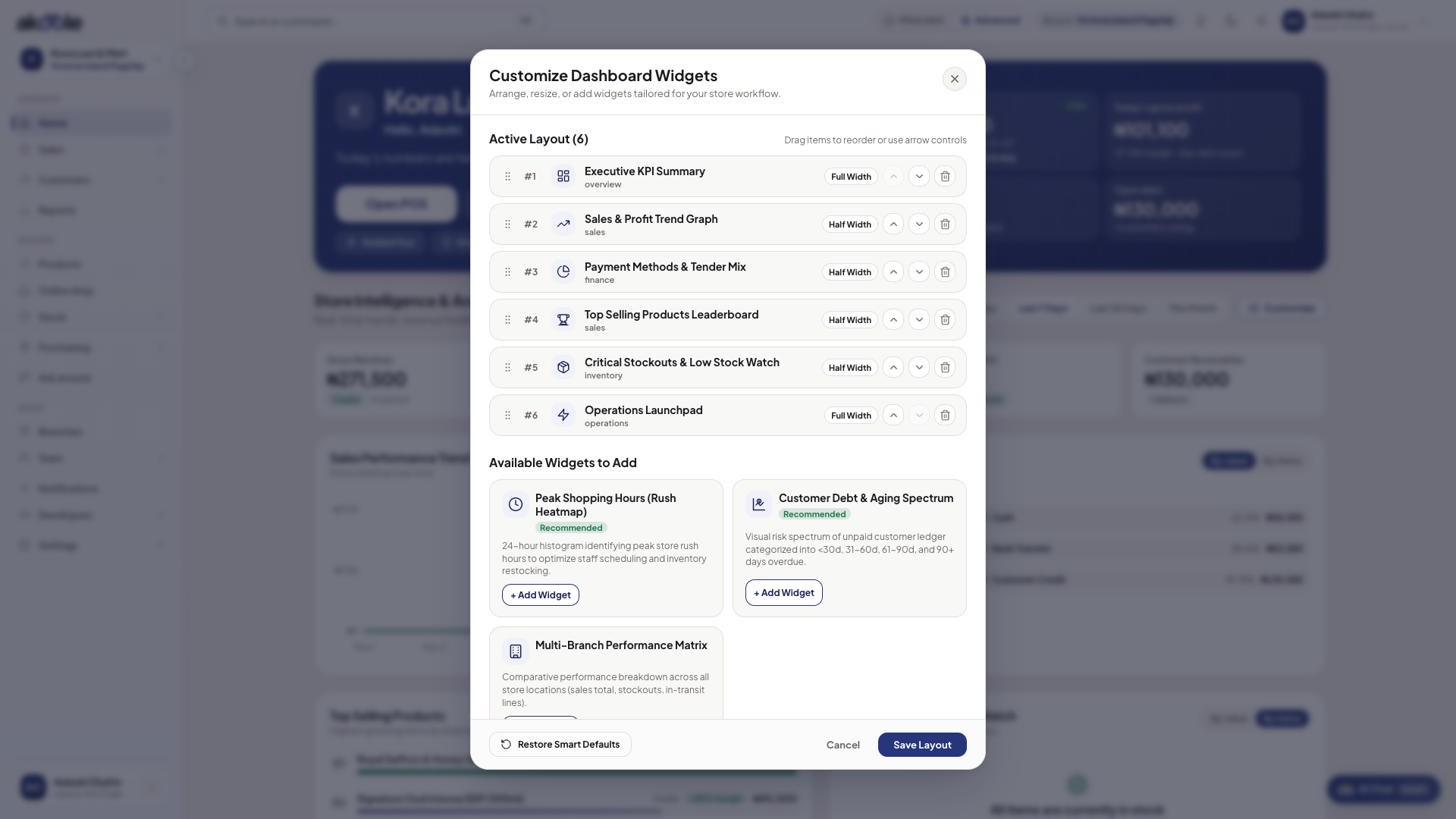
Dashboard customizer with active widgets and widgets to add -
Use How Akoole works
The in-app How Akoole works cards (including this dashboard and UI mode) are the same ideas as this knowledge base. Dismiss for today if you already know the till.
Show screenshot
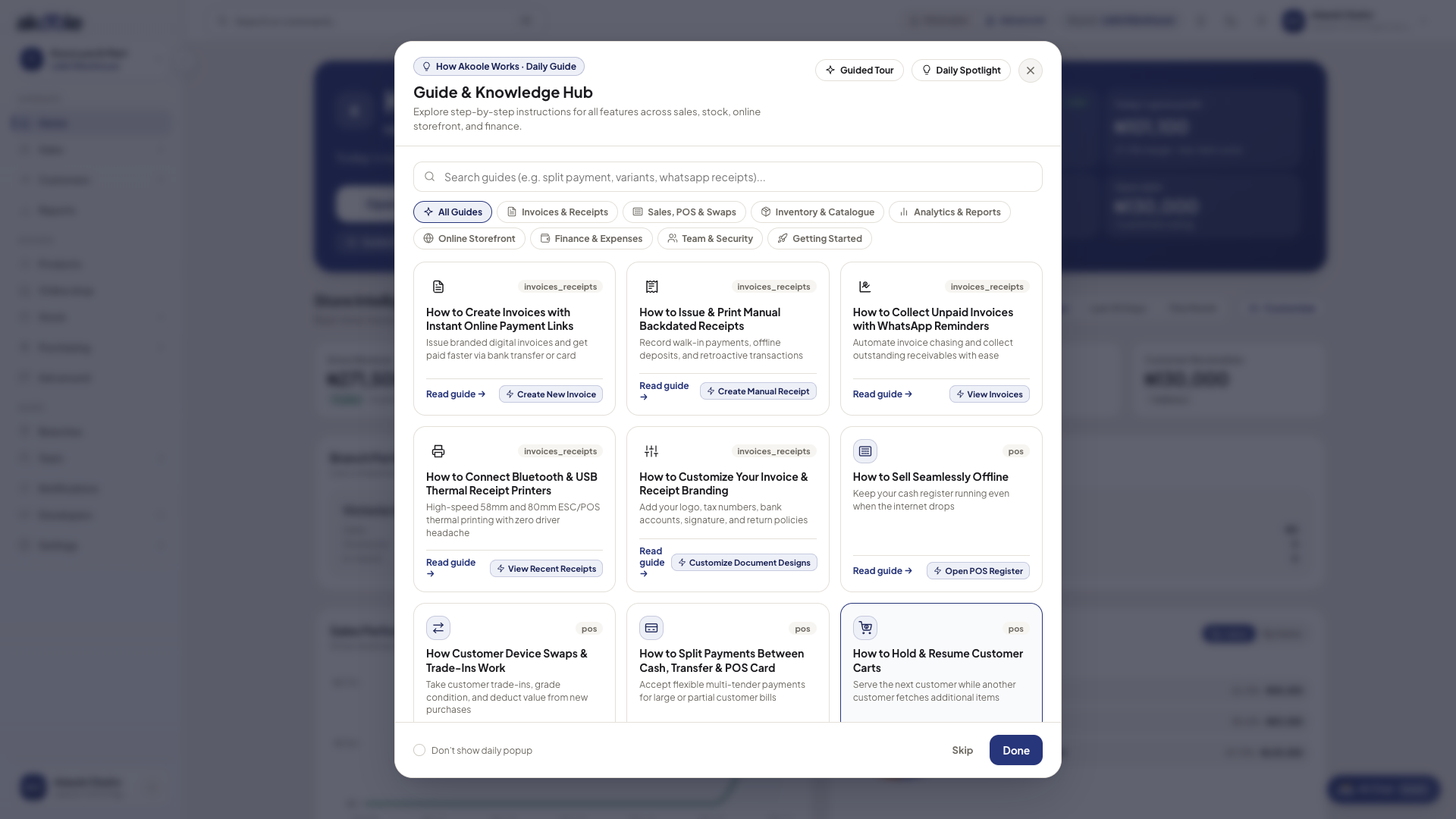
How Akoole works guide opened from Home -
Jump out
From Home, open POS, Products, or ⌘K. Home is the briefing, not the only place you work.
What success looks like
Section titled “What success looks like”You can explain today’s NGN and the next action on Needs attention at a glance, the setup list is either complete or dismissed on purpose, and Advanced widgets match how you run Akoole Demo Mart.
Show screenshot
If something goes wrong
Section titled “If something goes wrong”Customize is missing
You are in Minimalist. Switch to Advanced, or stay Minimalist if this device is the counter.
Widgets look empty
There are no sales or stock movements yet. Ring a test ₦200 sale or wait for the first real customer.