

Command palette
Open the command palette, search, and land on the right screen in seconds - including on a laptop at the Surulere counter.
-
Open the palette
From Home (or almost anywhere in the staff app), press ⌘K or Ctrl+K. A search dialog appears. You can also click the search control in the header when you see it.
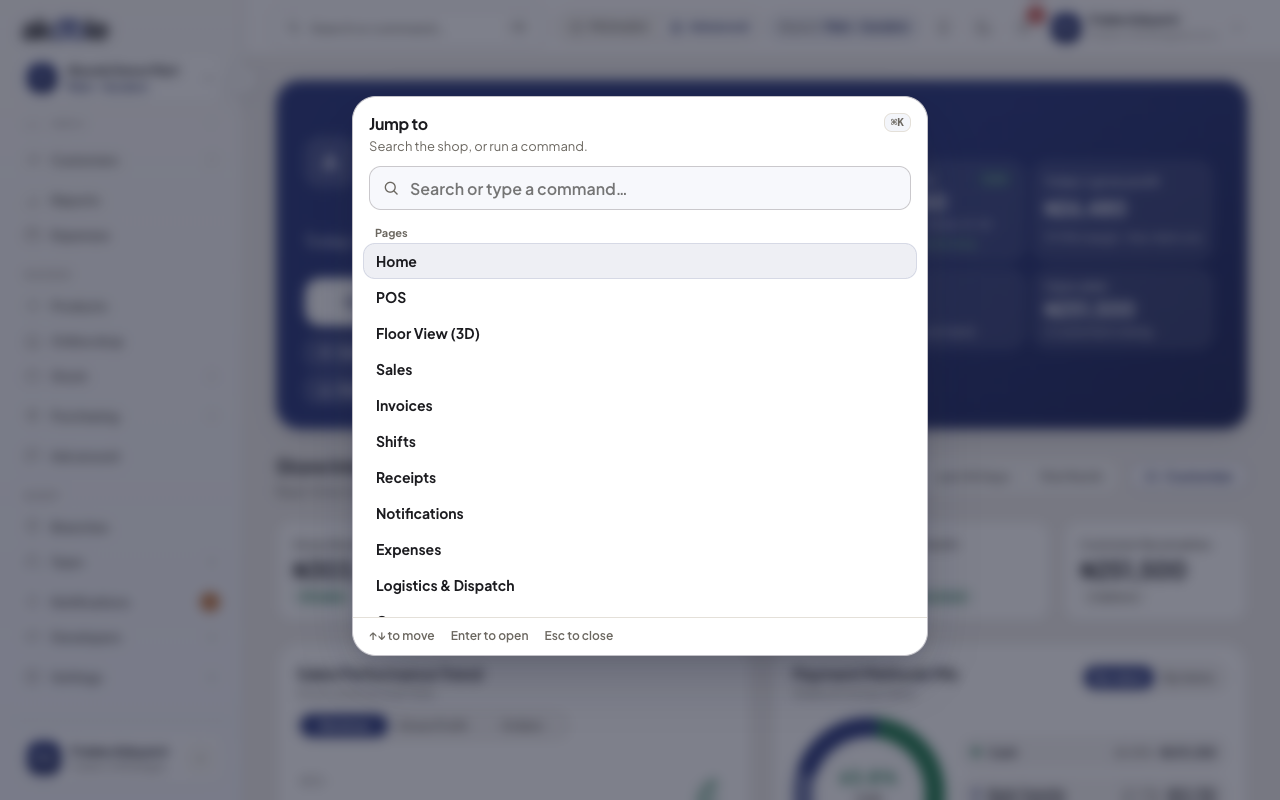
Command palette open on Home (⌘K or Ctrl+K) -
Jump to a page
Type
posortilland choose POS. Typeproductsorbilling. Arrow keys move; Enter opens. This respects what your role can see - a cashier will not jump into Owner billing.Show screenshot
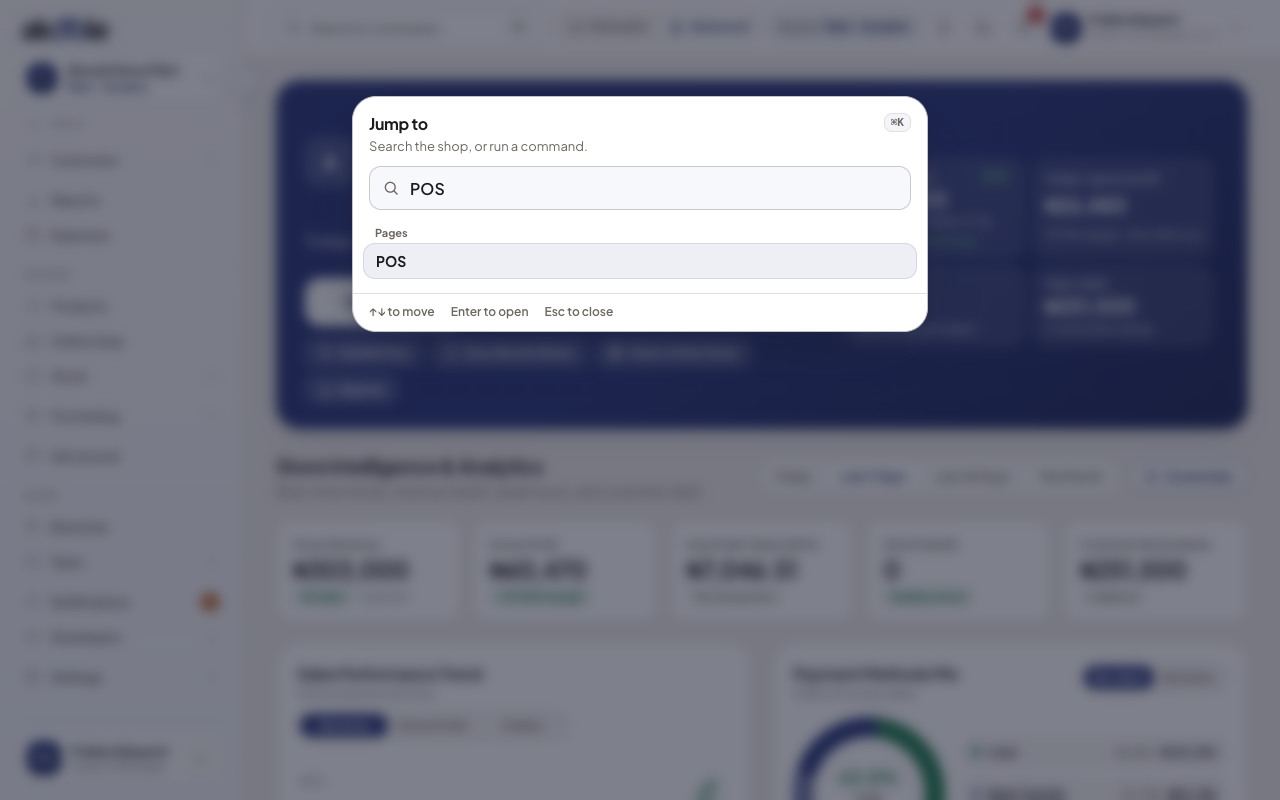
Command palette filtered to the POS -
Find a product
Type part of a name or barcode, for example
Peakor890. Pick the product to open it. Faster than scrolling the full list during a rush.Show screenshot
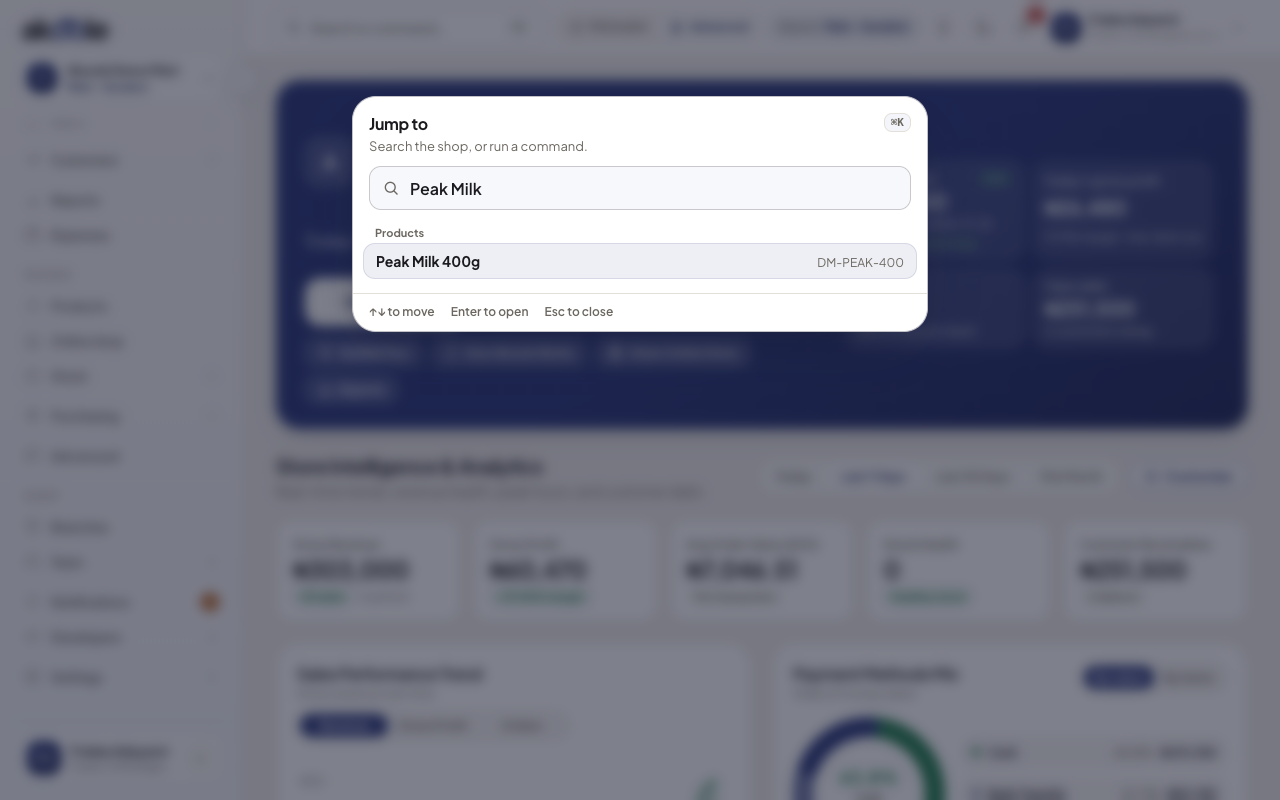
Command palette search for Peak Milk -
Look up someone on the book
On Growth+, search a customer name to open their debt. Useful when someone says “check what I still owe” while you are on Home, not already on Customers.
Show screenshot
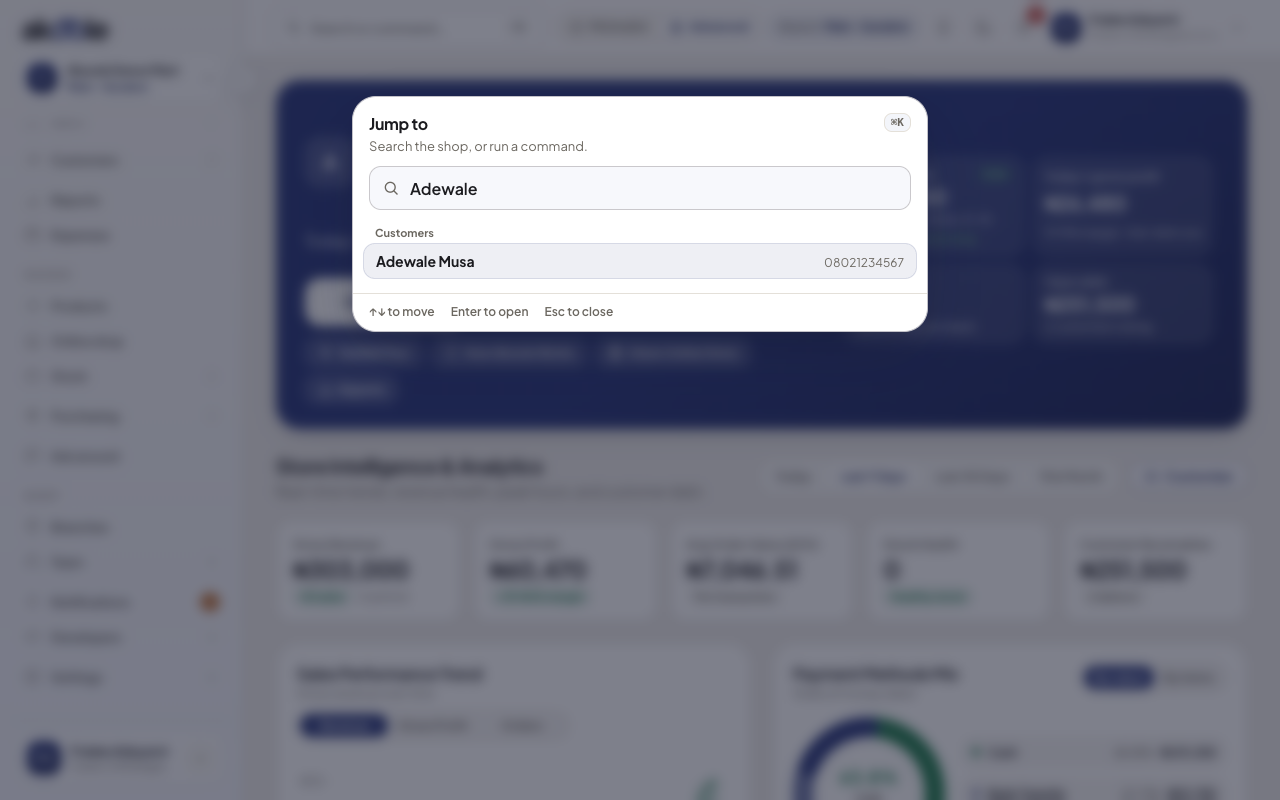
Command palette search for a customer, Adewale Musa -
Switch branch
If you have more than one outlet, jump to Branches or pick another location from palette results. Context changes inside the app - the URL host stays
app.akoole.com.Show screenshot
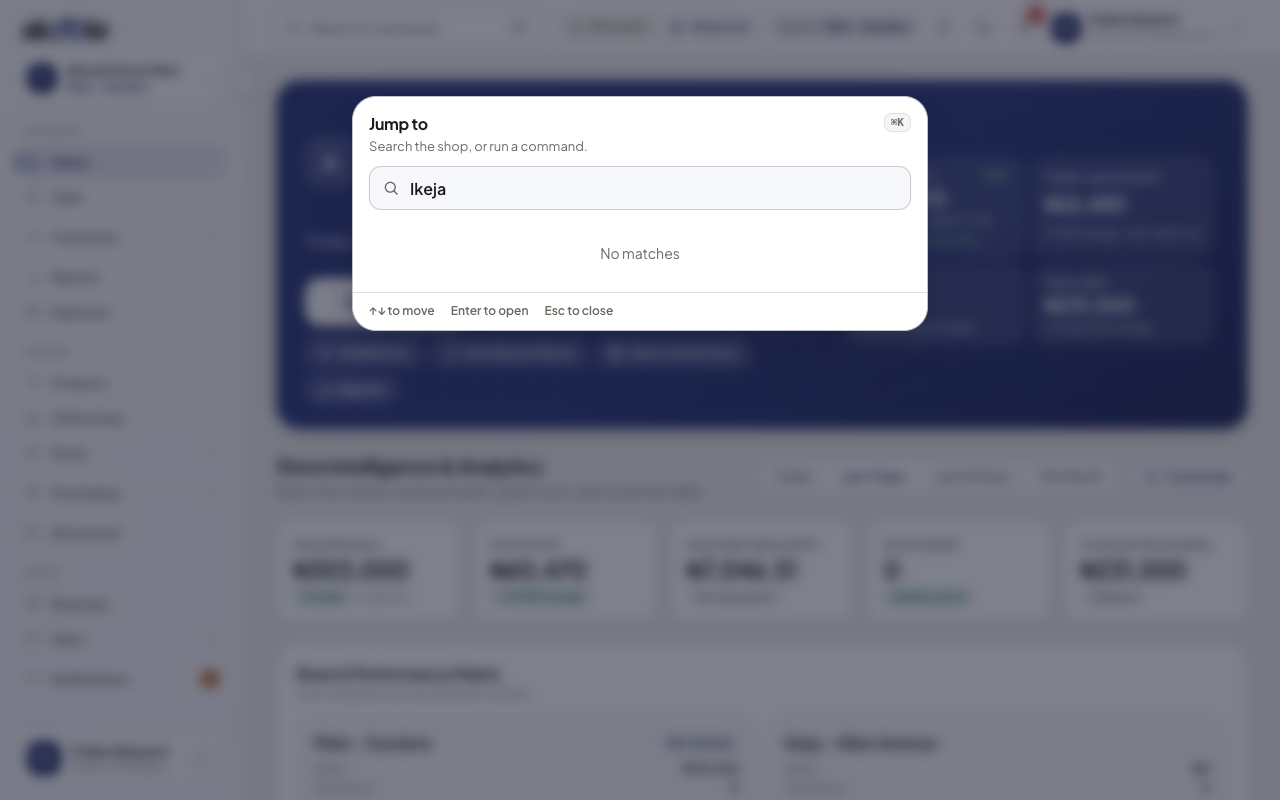
Command palette listing branches to jump to
Show screenshot
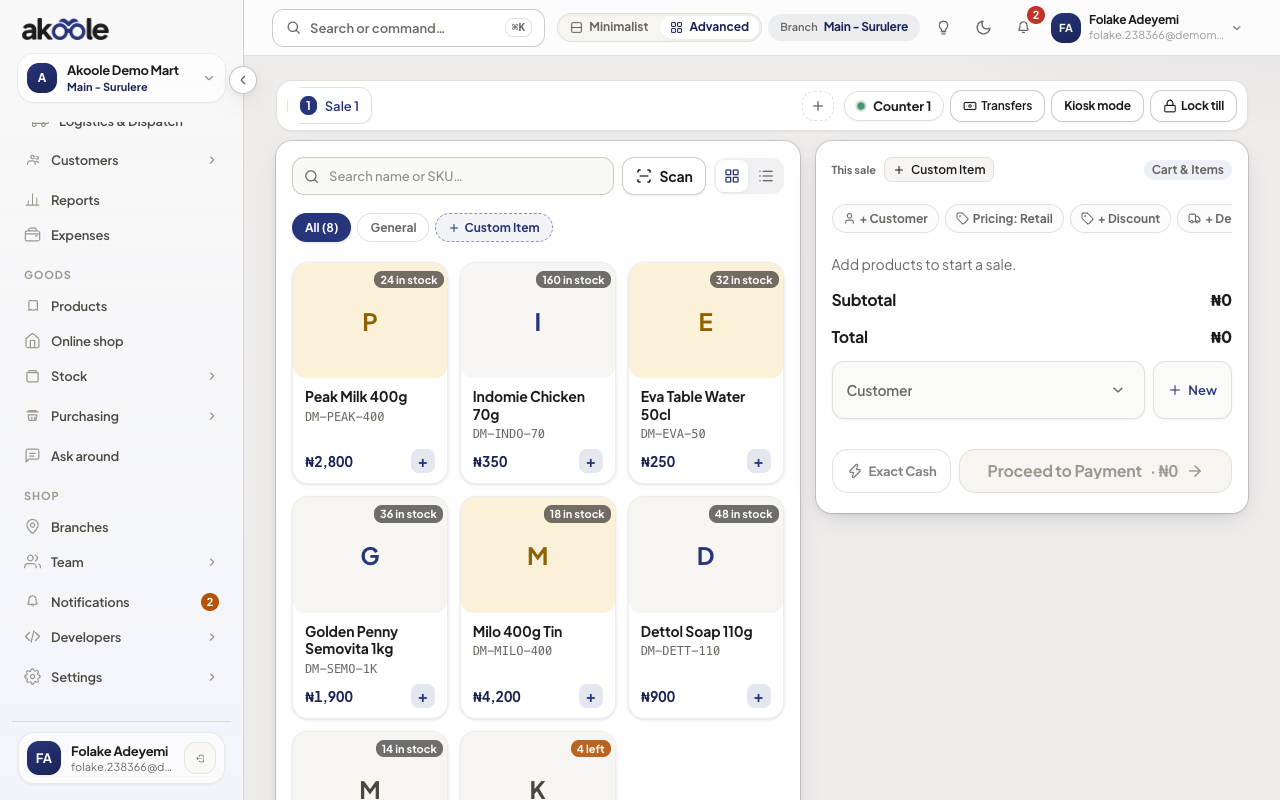
If something goes wrong
Section titled “If something goes wrong”Shortcut does nothing
Focus is inside a field that captures keys, or you are on a page without the staff shell (sign-in, onboarding). Click the page background, then try again. Confirm Mac vs Ctrl.
A result is missing
Your role cannot open that screen, or you typed a nickname that is not on the product. Search the barcode or official name.