

Multi-country tax engine
Ensure tax compliance across your sales receipts, B2B invoices, and online storefront by configuring accurate regional VAT, GST, or sales tax rates.
-
Open Taxation Settings
In the left sidebar under Settings, click Taxation (
/settings/taxation).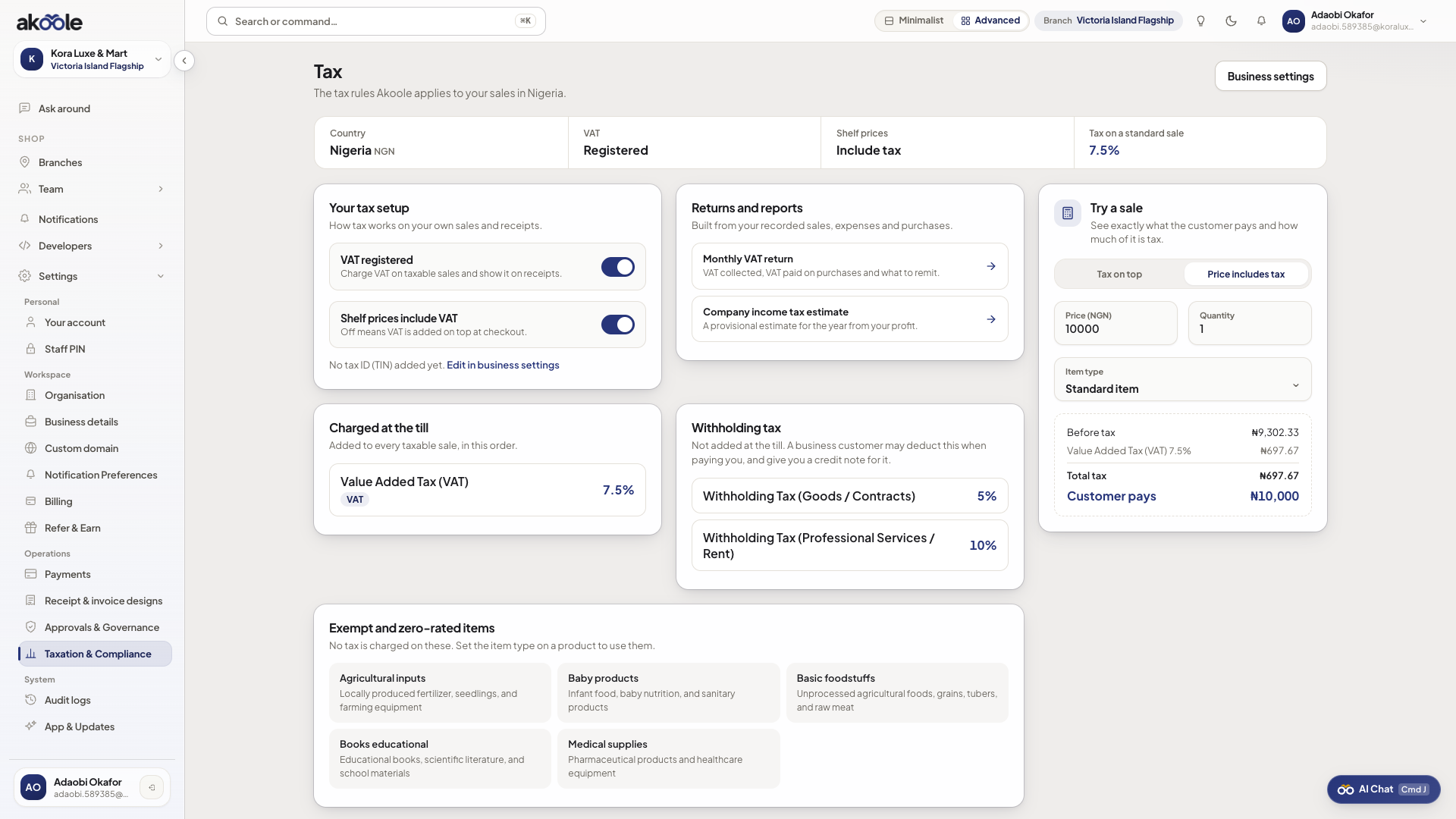
Tax page: your tax setup, rates charged at the till, withholding tax and exempt items -
Select jurisdiction & default rate
- Nigeria: 7.5% VAT (Value Added Tax).
- Ghana: 15% VAT / NHIL / GETFund.
- Kenya: 16% VAT.
- Custom Jurisdiction: Enter custom tax name and percentage.
-
Choose calculation mode
- Tax Inclusive (Recommended for Nigerian retail): Shelf prices already include tax. A ₦10,000 item is charged as ₦10,000, with ₦697.67 calculated and displayed as the tax portion on the receipt.
- Tax Exclusive (Standard for corporate B2B): Tax is added on top of the subtotal at checkout (₦10,000 + 7.5% VAT = ₦10,750).
-
Mark tax-exempt product categories
Select categories exempt from VAT by law (e.g. Basic Food Provisions, Educational Books, or Prescription Pharmaceuticals). Akoole automatically applies zero tax to those lines during checkout.
-
Test calculations in the Tax Simulator
Scroll to the Tax Simulator panel. Enter a sample basket amount (e.g.
₦50,000) and verify the exact subtotal, tax amount, and final total before saving your settings.Show screenshot
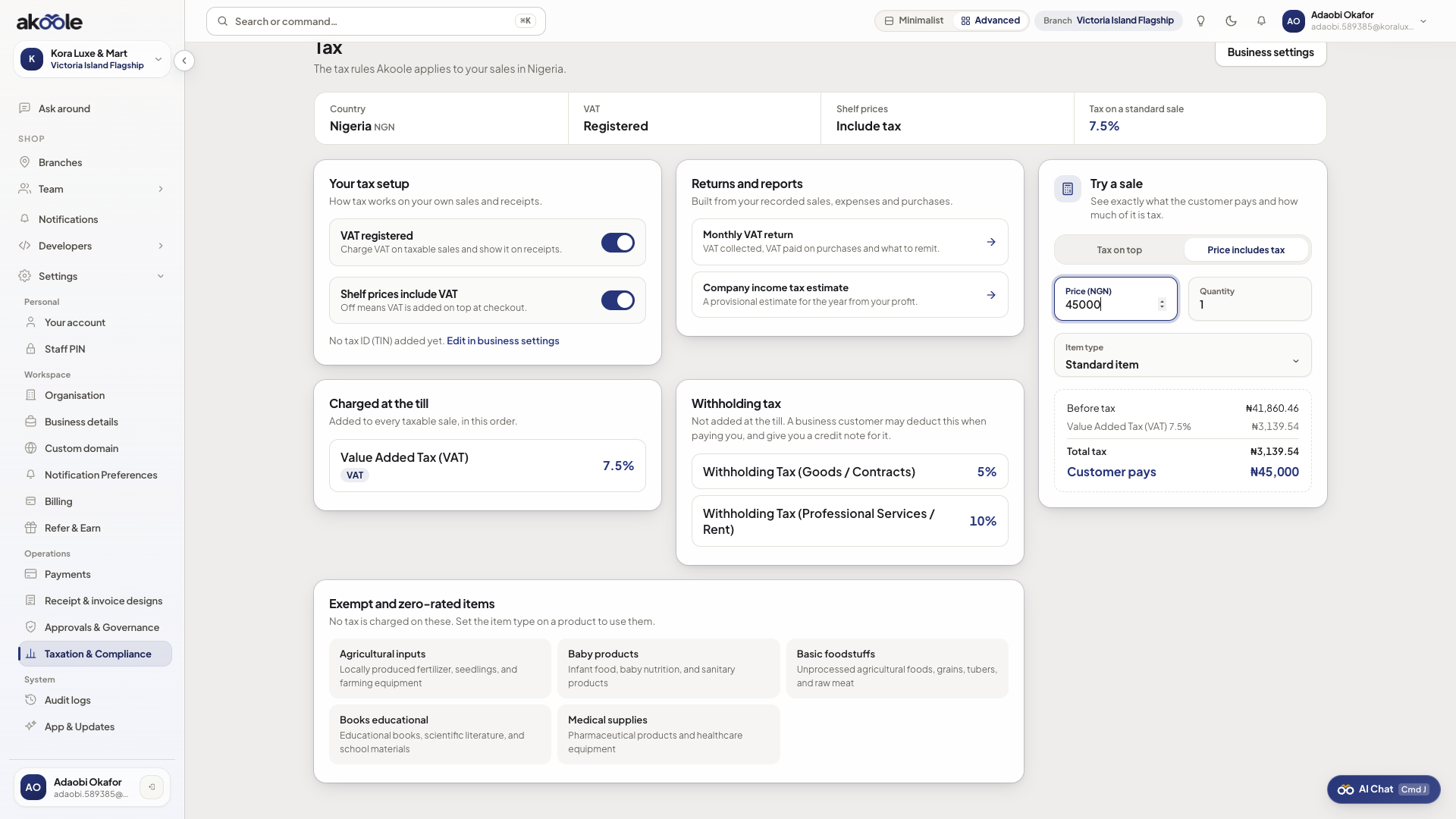
Try a sale: price before tax, VAT and what the customer pays
Common problems & fixes
Section titled “Common problems & fixes”- Customer complains about unexpected tax added at counter: If selling retail walk-ins, switch calculation mode to Tax Inclusive so shelf price equals the final checkout amount.