

Customer payment providers
Choose how customers pay you for invoices, WhatsApp payment links, and the online shop. You can use your own gateway keys or let Akoole manage settlement.
This is not Billing, which is what you pay Akoole for your plan.
Before you start
Section titled “Before you start”- Know which provider you use (or want): Paystack, Flutterwave, Stripe, Square, or Razorpay.
- For Own gateway, sign in to that provider’s dashboard. Start in test mode, then switch to live keys.
- For Managed settlement, add a settlement bank account first.
- Never paste live secret keys into chat, email, or support tickets.
-
Open Payments settings
Go to Settings → Payments. Set it up for the whole organisation, or add a branch override if each outlet settles separately.
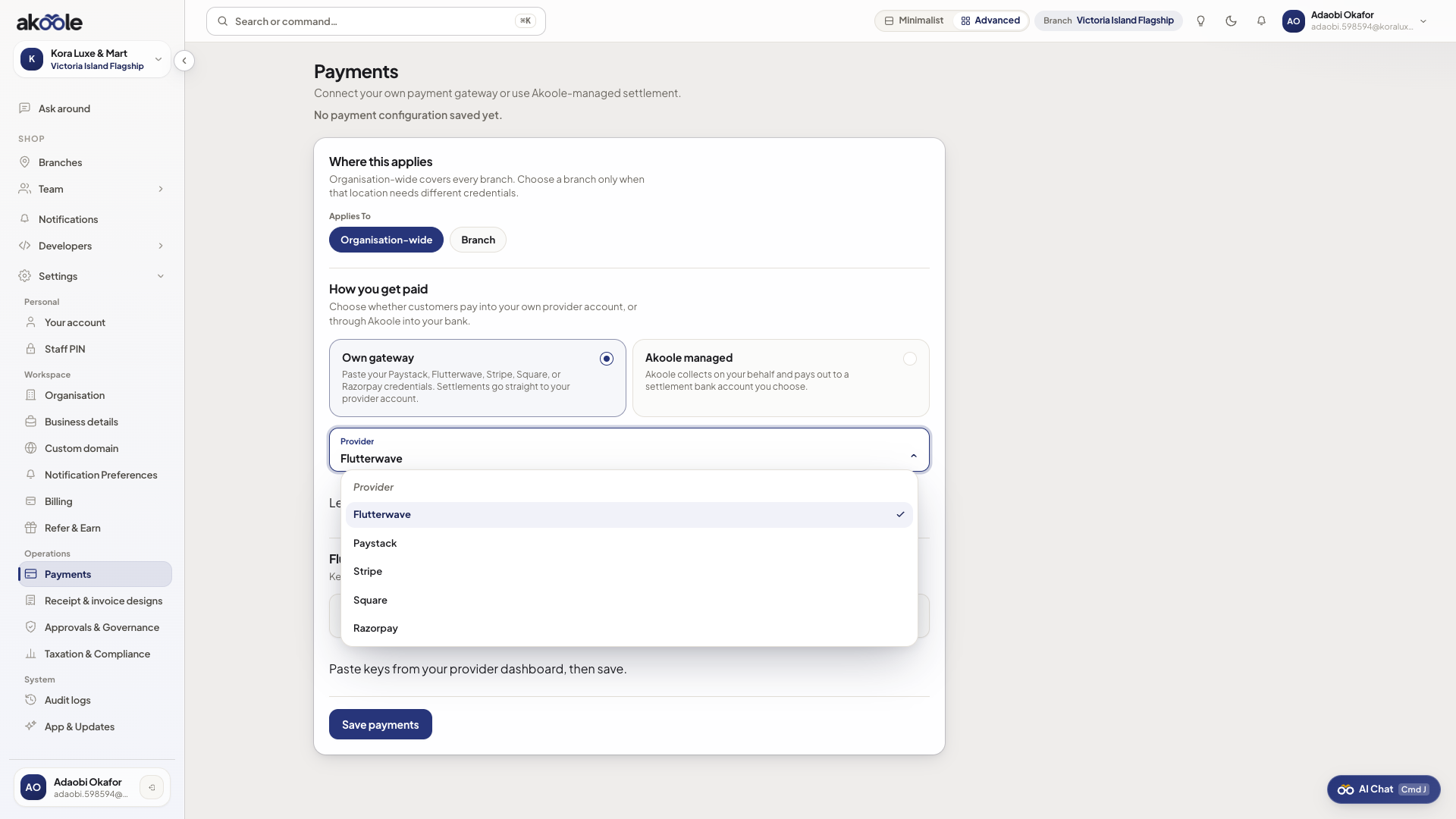
Payments: own gateway or Akoole managed -
Choose Own gateway or Managed
Own gateway: paste your provider keys and customers pay straight into your merchant account.
Managed: Akoole’s platform keys plus your settlement account, where the provider supports it.
-
Connect your provider
Pick your provider below and follow its tab.
-
In the Paystack Dashboard, open Settings → API Keys & Webhooks.
-
Copy the Secret key (
sk_…) and Public key (pk_…) for the mode you’re using. -
In the same screen, set the webhook URL to:
https://api.akoole.com/webhooks/api/v1/paystack/shop-payments -
In Akoole, choose Own gateway → Paystack, paste both keys, and Save payments.
Both keys are needed the first time. Later you can leave the secret blank to keep the one on file.
-
In the Flutterwave Dashboard, open Settings → API Keys.
-
Copy the Secret key and Public key for the mode you’re using.
-
Under webhook settings, set the URL to:
https://api.akoole.com/webhooks/api/v1/flutterwave/shop-payments -
In Akoole, choose Own gateway → Flutterwave, paste both keys, and Save payments.
If you also pay Akoole through Flutterwave, keep the two webhooks separate. Shop payments always use the shop-payments URL above.
-
In the Stripe Dashboard, open Developers → API keys.
-
Copy the Secret key (
sk_…) and Publishable key (pk_…). Or skip this and use Connect with Stripe on the Akoole Payments page. -
Add a webhook endpoint for checkout and payment-completed events:
https://api.akoole.com/webhooks/api/v1/stripe/shop-payments -
In Akoole, choose Own gateway → Stripe, paste both keys, and Save payments.
On Managed, save first, then finish Stripe Connect onboarding from the same page. If it stays pending, complete the Stripe steps and click Refresh status.
-
In your Square developer application, copy an Access token that can create payment links.
-
Copy the Location ID for the outlet that should receive the money. A wrong Location ID sends payments to the wrong outlet.
-
Subscribe to payment-completed notifications at this URL, then copy the Signature key:
https://api.akoole.com/webhooks/api/v1/square/shop-payments -
In Akoole, choose Own gateway → Square, fill in Access token, Location ID and Webhook signature key, then Save payments.
All three fields are required.
-
In the Razorpay Dashboard, open Account & Settings → API Keys and copy the Key ID (
rzp_…) and Key secret. -
Under Webhooks, create an endpoint for payment-link-paid events and copy its Webhook secret:
https://api.akoole.com/webhooks/api/v1/razorpay/shop-payments -
In Akoole, choose Own gateway → Razorpay, fill in Key ID, Key secret and Webhook secret, then Save payments.
All three fields are required the first time.
-
Check the status is active
After saving, the status should change to active. If you see an error banner, fix it before sending real payment links.
-
Test with a small payment
Send a small invoice payment link, pay it (in test mode if you can), and check the invoice is marked paid once.
If something goes wrong
Section titled “If something goes wrong”Customer paid but the invoice still shows unpaid
Check the webhook in your provider’s dashboard points to the shop-payments URL for that provider (not a billing URL). Also check test and live keys aren’t mixed: the keys you saved must match the mode that created the link.
Status won’t change to active
Some required fields are missing. Paystack, Flutterwave and Stripe need both keys. Square and Razorpay need all three fields.
Managed mode stuck on pending
Add a complete settlement bank account in Business details, then reopen Payments and save.
Mixing this up with Billing
Billing is your Akoole subscription. Settings → Payments is how customers pay your shop.