

3D Digital Twin overview
View and interact with a living 3D digital twin of your physical store or warehouse, rendering your store’s real branding, layout, checkout registers, and inventory aisles in real time.
-
Open Floor View
In the left navigation sidebar under Operate, click Floor View (or press
Cmd+K/Ctrl+Kand typeFloor View). The interactive 3D scene initializes in your browser using hardware-accelerated WebGL.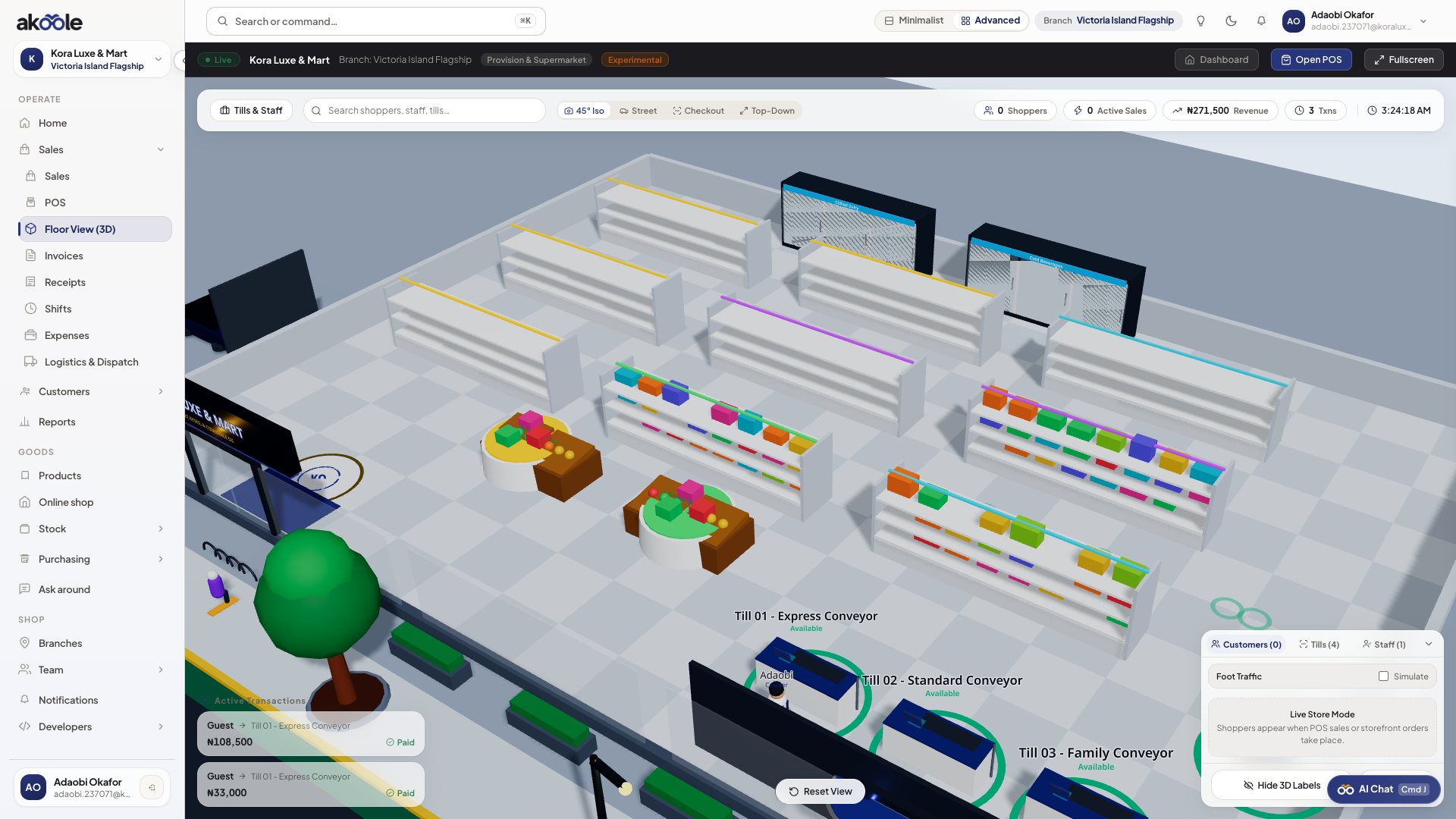
3D Floor View of the shop -
Navigate the 3D space
- Orbit / Rotate: Click and drag with the left mouse button (or single-finger drag on mobile/touch screens).
- Pan: Right-click and drag (or two-finger drag on touch screens).
- Zoom: Use the mouse scroll wheel (or pinch to zoom on touch screens).
-
Switch camera presets
Use the camera pill buttons in the top HUD to jump between perspectives:
- 45° Iso: Balanced overview showing the entire store layout, aisles, and checkout line.
- Street View: Front-facing view looking through the entrance glass doors.
- Checkout: Close-up framing focused directly on counter tills and queue belts.
- Top-Down: Orthographic plan view ideal for reviewing floor layout and aisle density.
Show screenshot
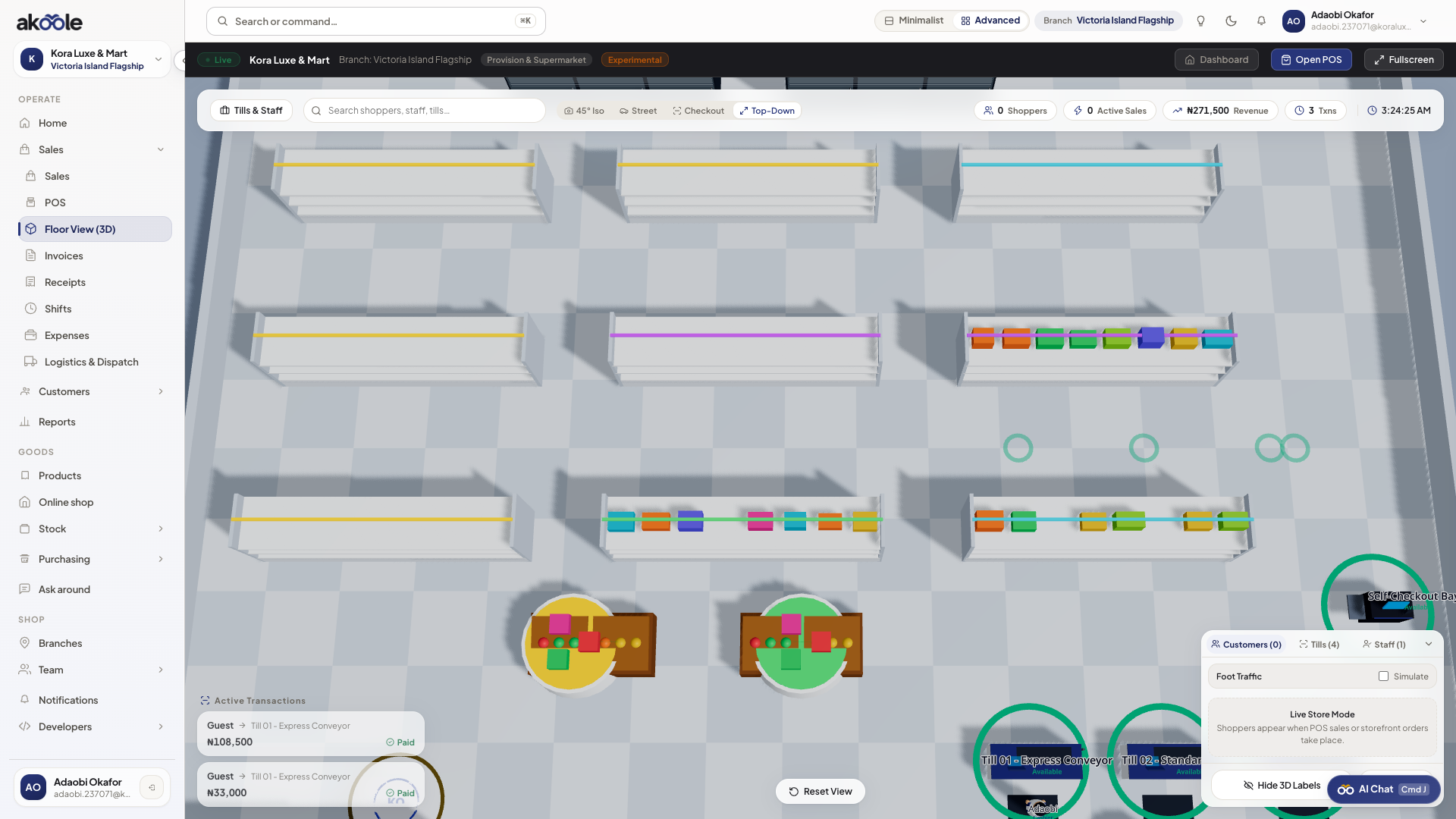
Floor View camera presets -
Watch the full walkthrough
Common problems & fixes
Section titled “Common problems & fixes”- Scene runs slowly or stutters: Ensure hardware acceleration is enabled in your browser settings (
Chrome Settings → System → Use graphics acceleration when available). - Store name or colours look default: Save your store logo, icon, and brand colour palette in Organisation branding to apply them immediately to the 3D twin.