

Categories and units
You organise Products so cashiers filter fast, and you count cartons while POS can still sell pieces.
-
Open category management
Go to Products and tap Categories (or Manage categories). This is how you group SKUs for staff and for the online shop.

Products toolbar with the category filter -
Add categories you actually use
Add names like Noodles, Beverages, Phones. Rename or delete from the same modal. Filter the products table by category when the list grows.
Show screenshot
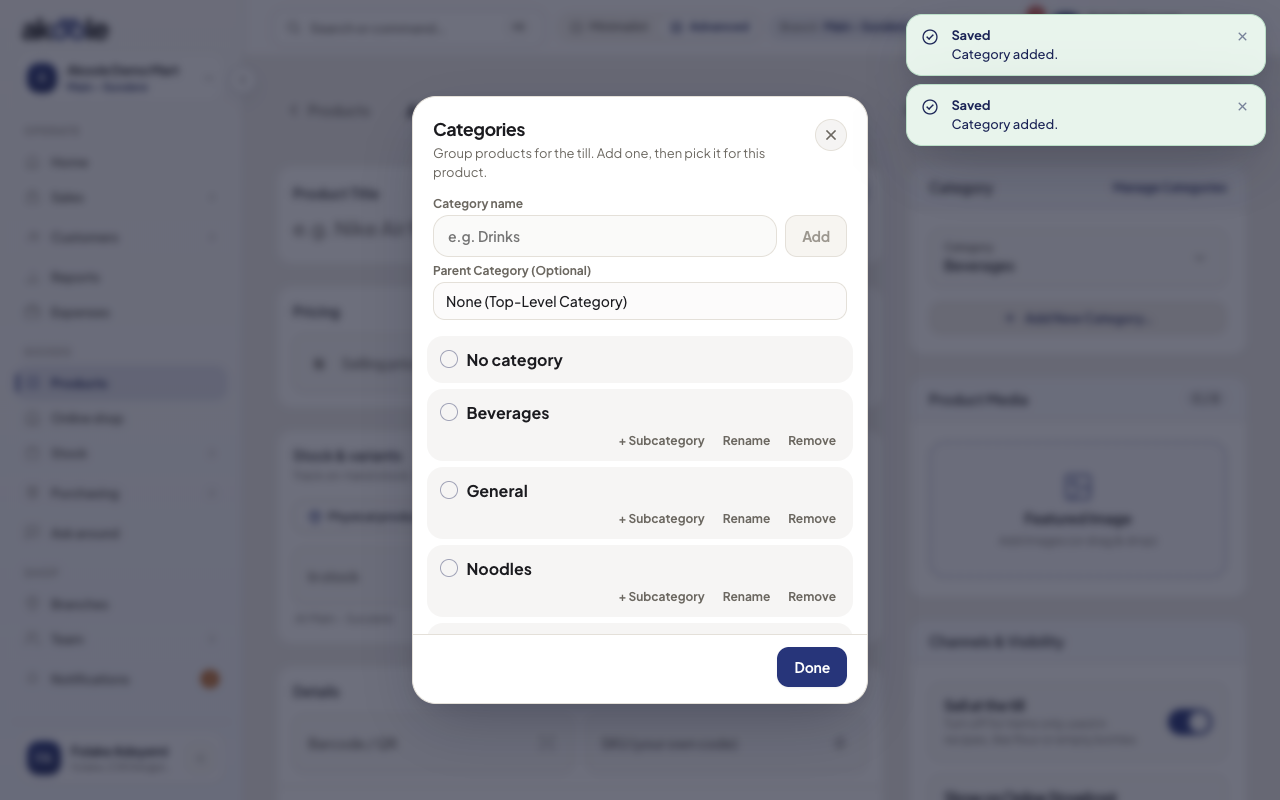
Manage categories with Noodles and Beverages -
Assign a product to a category
Edit Indomie and set category Noodles. Cashiers can filter POS and you can filter Products.
-
Define piece and carton
Set the base unit to piece. Add carton with conversion × 12. Purchasing a carton then increases on-hand by 12 pieces.
-
Sell and receive in the right unit
Receive a carton from the supplier; stock shows 12 pieces. At POS, a walk-in buying one pack decrements one piece, not a whole carton.
If something goes wrong
Section titled “If something goes wrong”Stock looks 12× too high or too low
Check the conversion on the product. If you received “12 cartons” but the unit was already pieces, you overstated stock. Adjust with a reason, then fix the unit.
Category missing on the online shop
Categories only help the public shop for products marked Show on online shop, on Growth and above.