

Snap-to-Product & shelf scan
Digitize physical stock in minutes using multimodal vision AI instead of typing hundreds of product names, units, and categories manually.
-
Open Snap-to-Product
In the AI Copilot drawer or on Add a product, click Snap to Product.
-
Capture or upload a single product photo
Take a clear photo of the product front packaging. Vision AI scans the image and extracts:
- Product Title & Brand: (e.g. Peak Full Cream Milk Powder 400g Tin).
- Suggested Category & Unit: (e.g. Groceries & Dairy, Unit: Pieces).
- Estimated Market Price Range in NGN: Suggested retail benchmark based on current regional pricing.
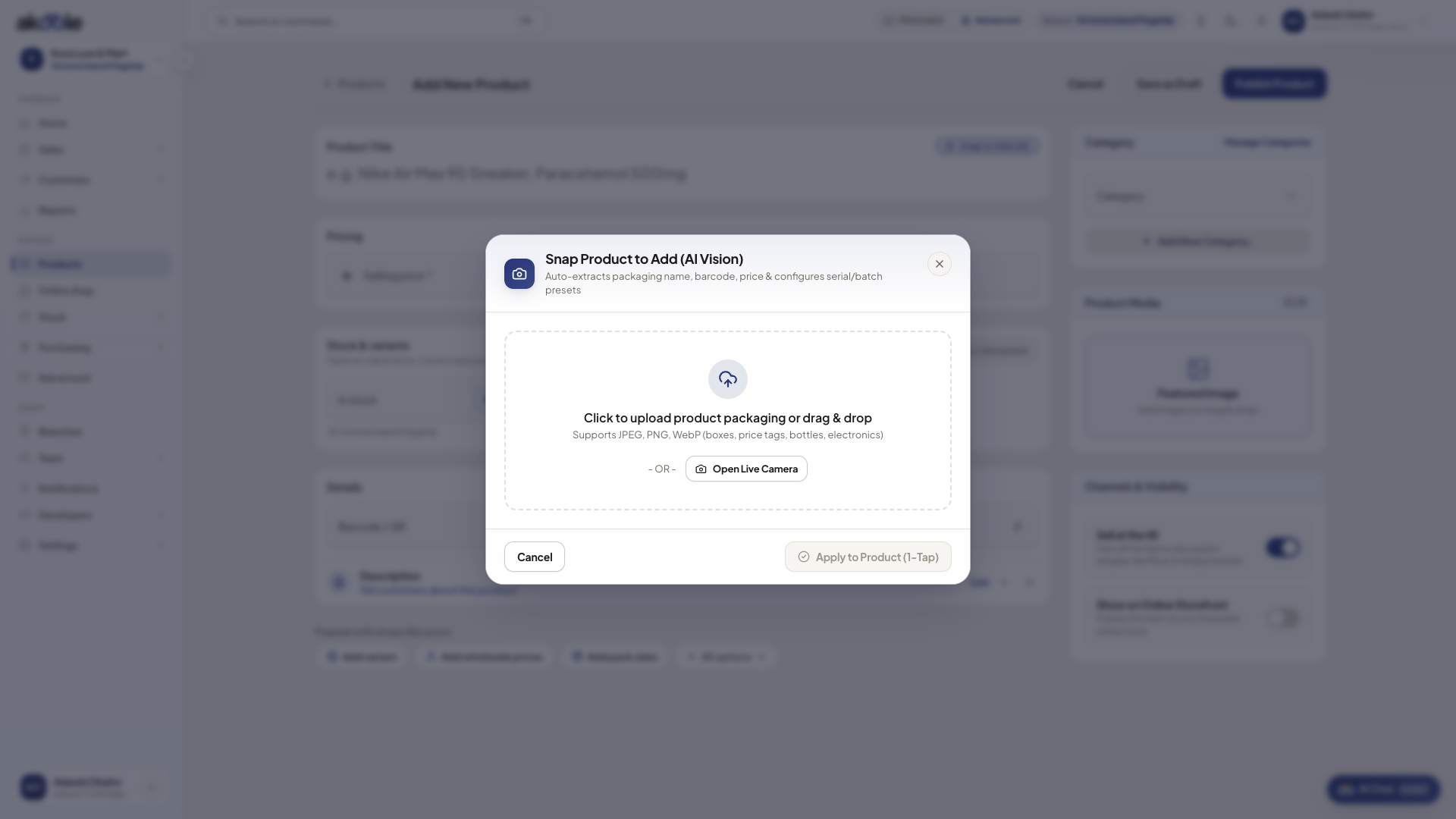
Snap to Add dialog on a new product: upload packaging or open the live camera -
Or run a Shelf Scan for multiple items
Click Shelf Scan and photograph an entire shelf row in your store. Vision AI detects multiple distinct products in the frame, identifies packaging, counts visible facings, and lists them as draft catalogue entries.
-
Review, adjust, and commit to catalogue
Verify selling prices and enter your initial opening quantities on hand, then click Commit to Catalogue. The products immediately appear in your catalogue and on the counter POS.
Common problems & fixes
Section titled “Common problems & fixes”- Text on packaging is blurry: Retake the photo under good lighting with the main label facing directly toward the camera.