

Tills, staff roster & shelves
Monitor and command your physical retail floor directly from the 3D view: see cashier assignments, track sales per register, send staff on break, and inspect aisle stock levels.
-
Click a till to inspect register HUD
In Floor View, click directly on any cash register terminal (Till 01, Till 02, etc.). A floating register HUD card opens showing:
- Assigned Cashier: Staff name, photo/avatar, and current shift duration.
- Status: Open, Closed, or Idle.
- Today’s Ring-Up: Total receipts processed, total NGN revenue generated on that till today, and average basket value.
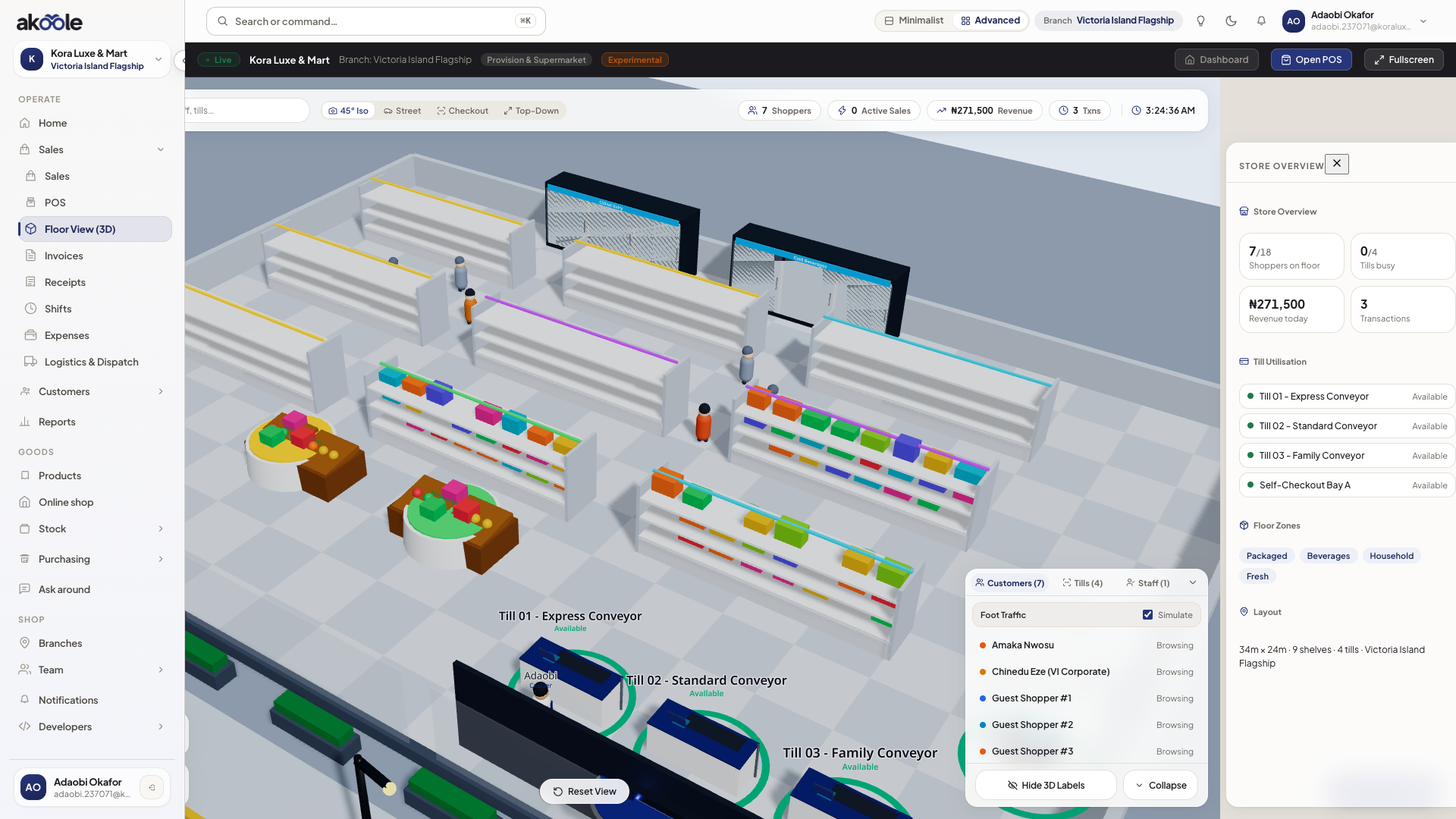
Till details card on the Floor View -
Open the Store Team & Tills drawer
Click the Team & Tills button in the bottom-left controls to slide open the floor roster panel.
-
Reassign cashiers and update duty status
- Select an unassigned till and choose an active staff member to open the register.
- Toggle a staff member’s status between On Duty and On Break. When marked on break, their 3D avatar smoothly steps away from the counter to the break lounge area.
Show screenshot
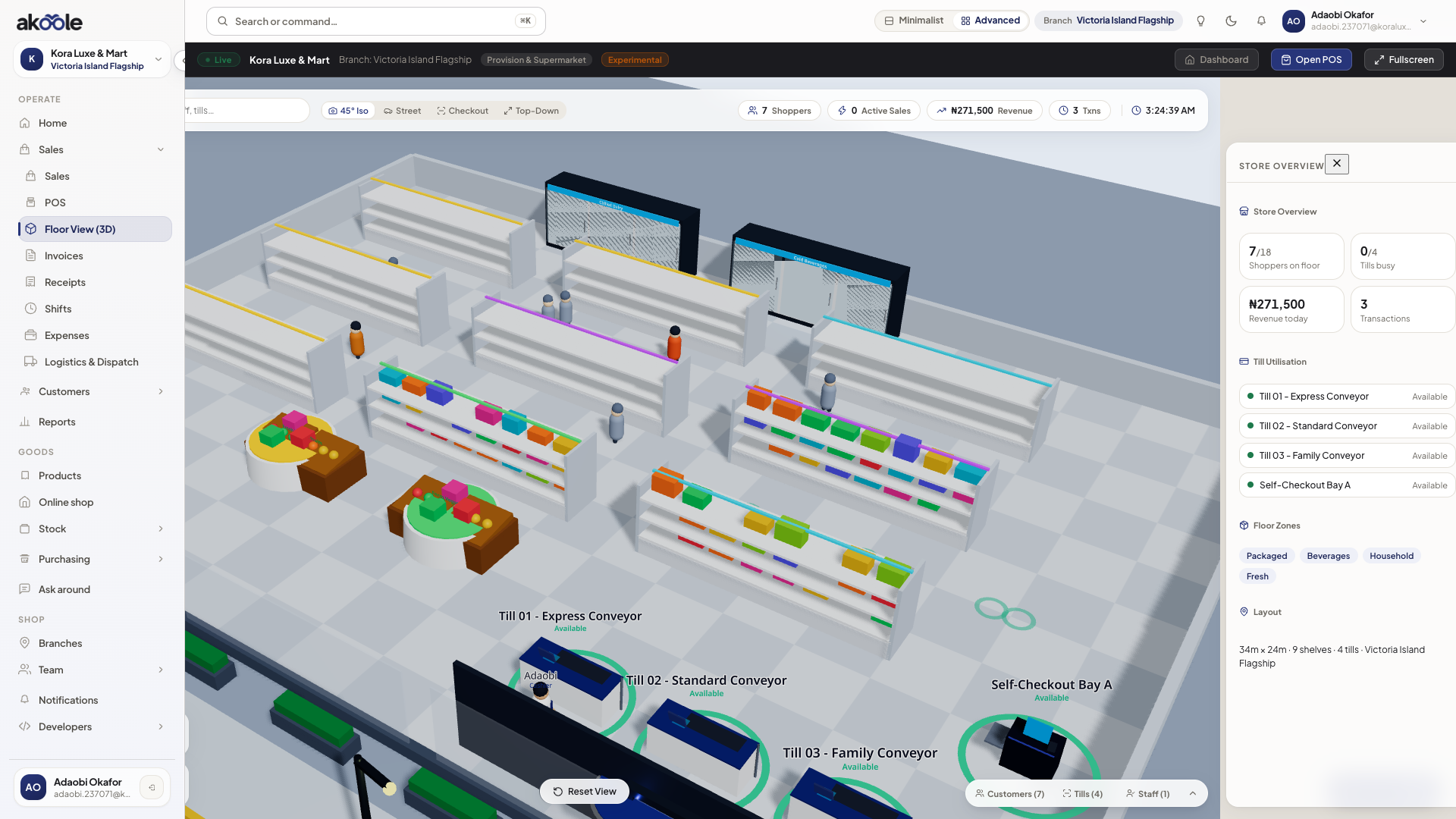
Store Team and Tills drawer -
Inspect aisle shelf stock
Click on any product display gondola or warehouse storage rack. A shelf capacity tooltip displays:
- Category name (e.g. Beverages & Milk or Fragrances & Oils).
- Capacity percentage (e.g. 85% Full).
- Amber or red low-stock alert badges when any SKU on that shelf falls below its reorder point.
Common problems & fixes
Section titled “Common problems & fixes”- Cashier name shows as Unassigned: Ensure the cashier has opened their active shift on that till under Open and close a shift.