

POS kiosk mode
Lock a shared counter tablet, iPad, or desktop computer into a dedicated, full-screen Point of Sale terminal so cashiers can scan, ring sales, and print receipts quickly without being able to navigate into private financial reports, customer databases, or shop settings.
Store owners, managers, and till operators setting up front-of-house cash desks and checkout lanes.
Why use kiosk mode?
Section titled “Why use kiosk mode?”- Zero distractions: Hides the sidebar, settings links, and back-office menus, maximizing screen real estate for product grids and the active cart.
- Role protection & manager PIN: If a cashier attempts to leave the POS screen or open administrative routes, Akoole displays a secure PIN challenge. Only users with the Override / Manage capability can unlock the terminal.
- Crash resilience: If the browser is refreshed or reopened, the register restores directly into the active sales shift in kiosk mode without exposing the dashboard.
-
Open the POS screen
Sign in on your counter device and go to Sales → POS (
/sales/pos). Ensure the cashier’s active shift is open. -
Enable Kiosk mode
Click the Kiosk Mode toggle in the POS top action bar (or press F11 for full-screen mode on desktop). The interface expands to fill the entire screen, collapsing the navigation sidebar.
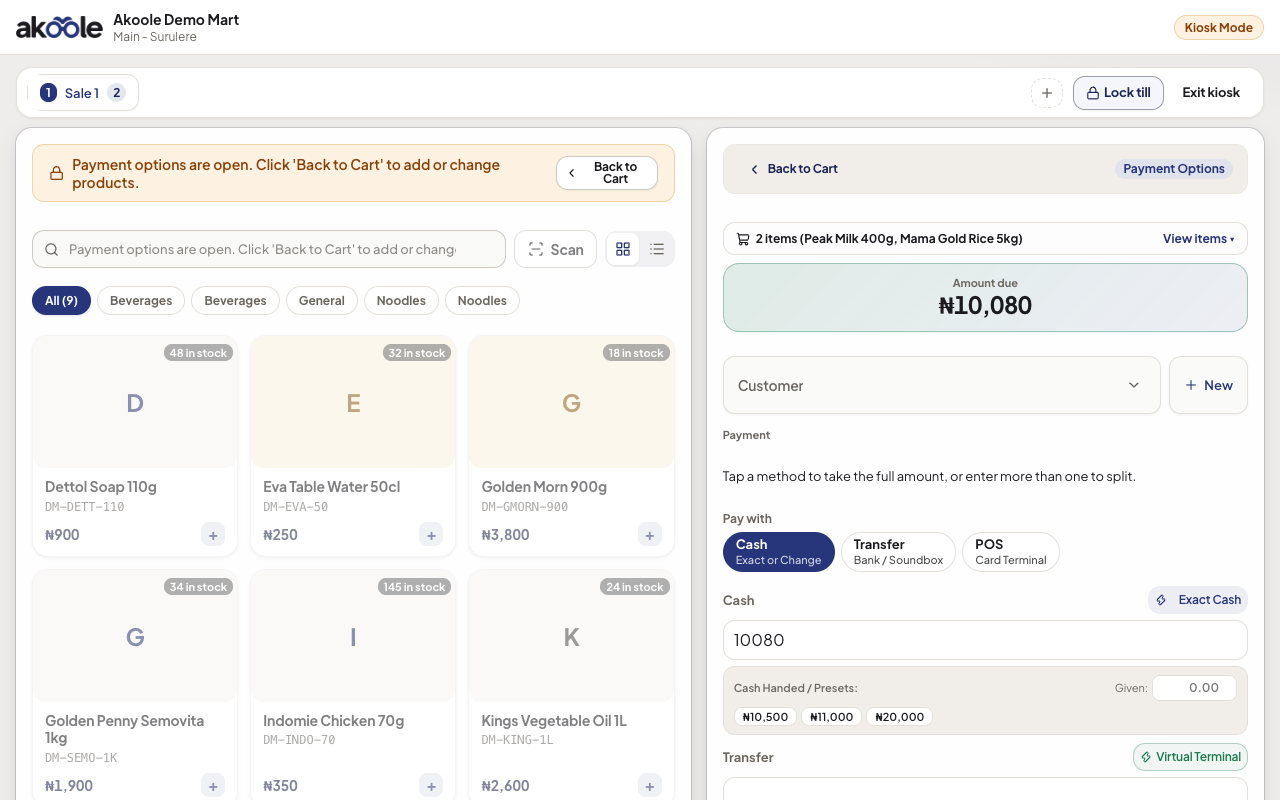
POS in Kiosk Mode: just the register, nothing else to browse -
Operate the register
Cashiers can:
- Scan barcodes or click product tiles to add items to cart.
- Switch between up to 8 customer tabs (
Alt+1toAlt+8). - Accept cash, bank transfer, card, or split-tender payments.
- Print thermal receipts or send digital receipts over WhatsApp.
-
Exit or unlock Kiosk mode
When a supervisor needs to view inventory or close the shop:
- Click the lock icon or Exit Kiosk button at the top corner of the screen.
- Enter an authorized Manager or Owner PIN.
- Upon successful verification, the full navigation sidebar and back-office controls are restored.
Show screenshot
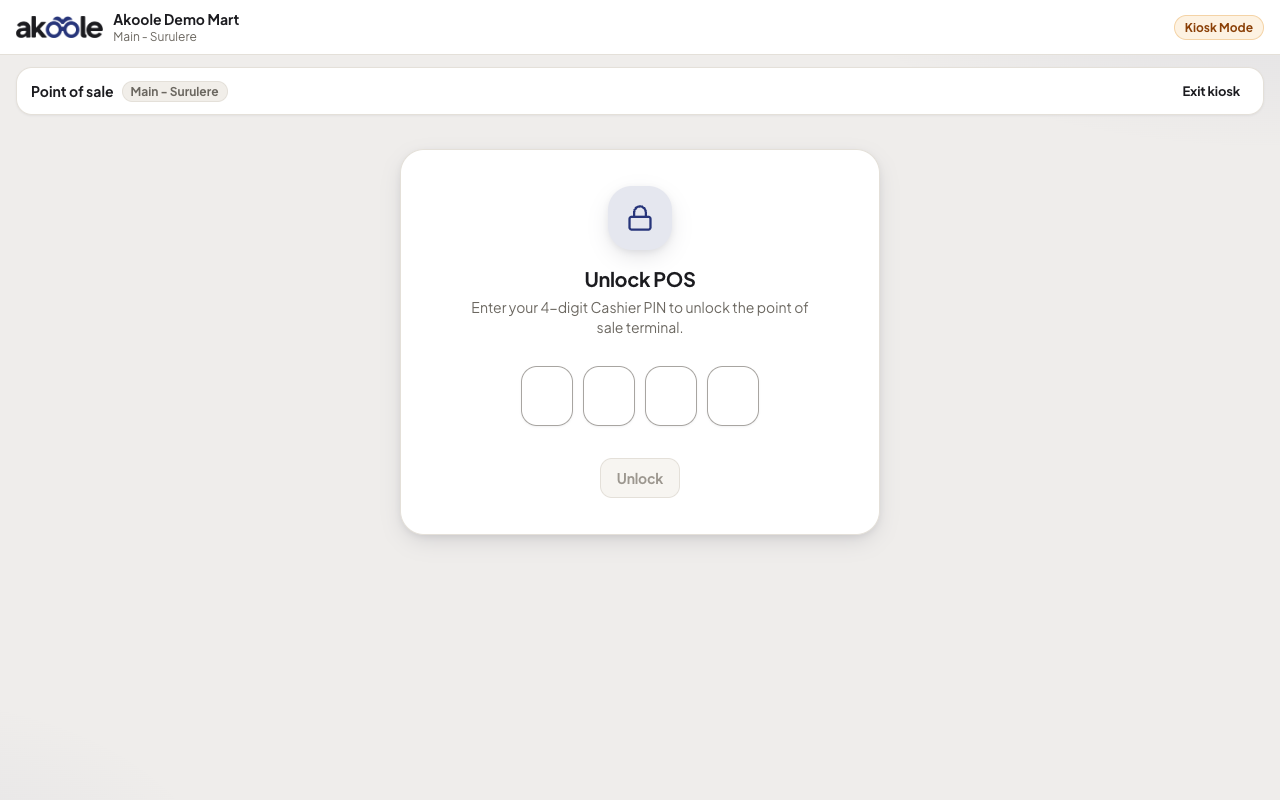
Till locked: the next cashier unlocks with their PIN
Verification
Section titled “Verification”- Try navigating to
/reportsor/settings/billingwhile Kiosk mode is engaged; thePosKioskGuardimmediately intercepts the route and presents the manager unlock dialog. - Refreshing the web page keeps the register safely locked in Kiosk mode.
What can go wrong
Section titled “What can go wrong”- Staff forgot manager PIN: The store Owner can always sign in with their full email and password, or update staff PINs under Team → Members (
/team). - Browser address bar visible on tablet: Add Akoole to your tablet’s home screen as a Progressive Web App (PWA) via Install as an app to launch in standalone full-screen without URL bars.
- Staff PIN - Assign 4-digit or 6-digit PINs for quick cashier authentication.
- Open and close a shift - Manage till opening float and end-of-day cash reconciliation.
- Thermal printing - Connect ESC/POS Bluetooth and USB thermal receipt printers.