

Audit logs
Trace every sensitive action performed in your shop - who created an API key, who invited a new staff member, when shop settings were modified, or who created a new role - complete with timestamps, IP addresses, client devices, and exact before-and-after change diffs.
Before you start
Section titled “Before you start”Owners, managers, and compliance auditors with the View audit logs (org.audit.view) and Export audit logs (org.audit.export) permissions.
- You are signed in to the staff app with an Owner or Manager role.
- Security-critical events (role modifications, API key creation, member invitations) are logged automatically; there is no setup or activation required.
-
Open Audit logs
Navigate to Settings → Audit logs (
/settings/audit-logs) in the left sidebar, or press ⌘K (Ctrl+K) and typeAudit logs.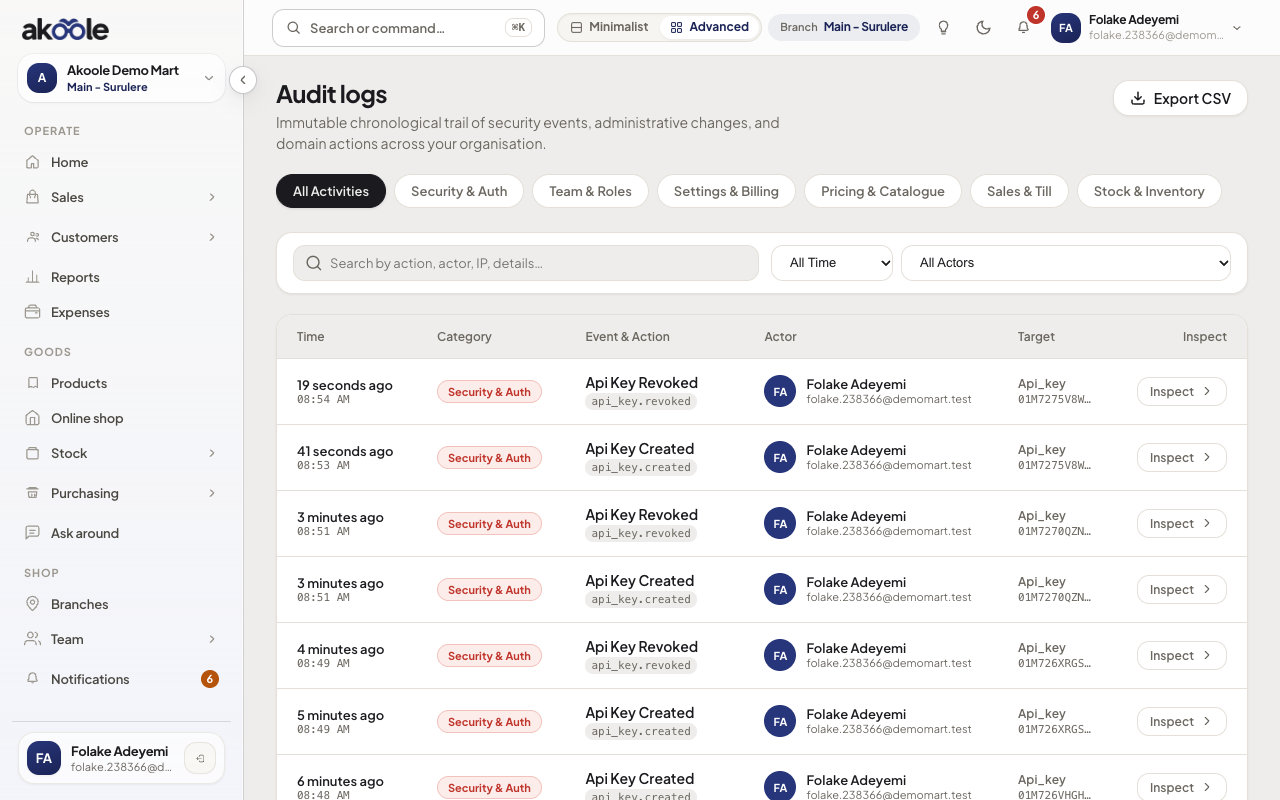
Audit logs: every sensitive change, who made it and when -
Filter by activity category
Use the category pill buttons at the top of the feed to narrow down events:
- All Activities: Complete chronological feed across the entire organisation.
- Security & Auth: API keys, credentials, and authentication updates.
- Team & Roles: Staff invitations, role assignments, and permission changes.
- Settings & Billing: Organisation details, addresses, banking info, and subscription updates.
- Pricing & Catalogue: Product pricing shifts and catalogue modifications.
- Sales & Till: Cash register shifts, tenders, and till reconciliations.
- Stock & Inventory: Stock adjustments, serial assignments, and branch transfers.
Show screenshot
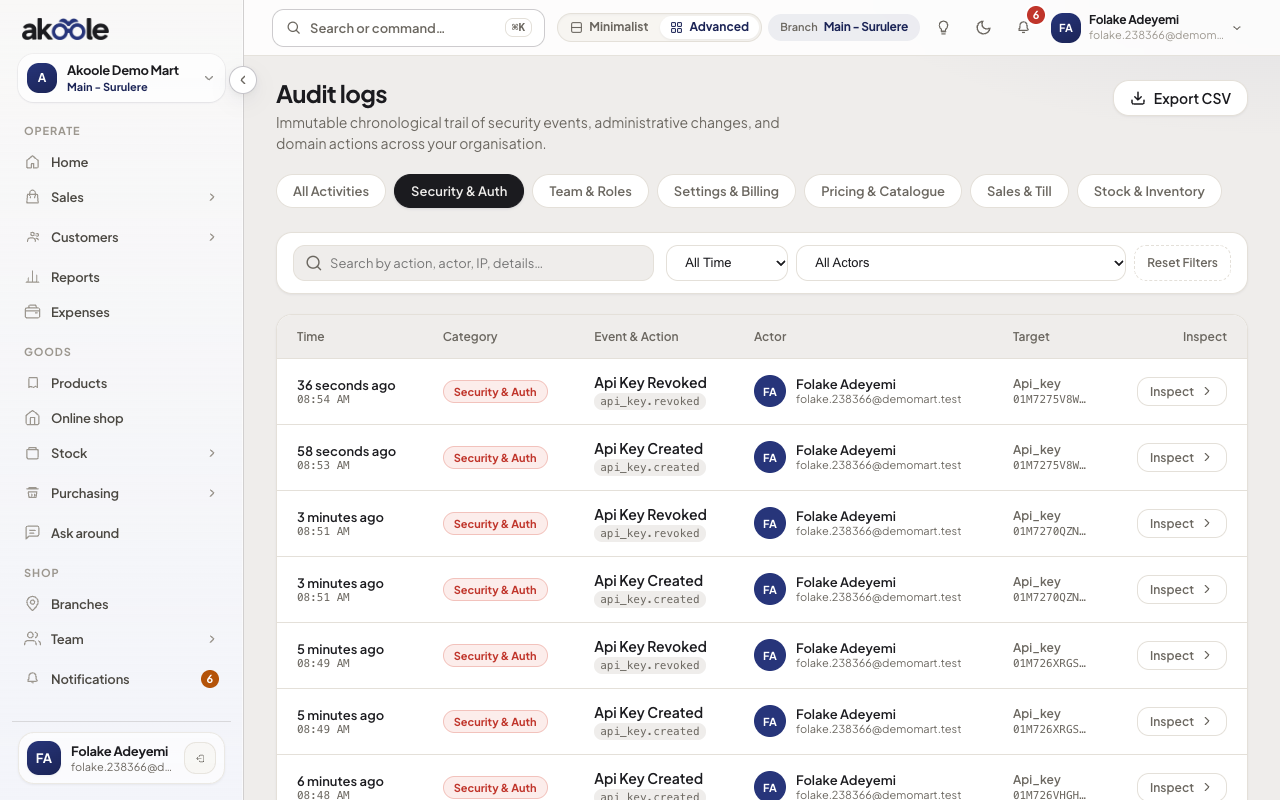
Audit logs filtered to Security and Auth -
Search and filter by actor or date range
- Search query: Type into the search box to find events by action name (e.g.
api_key.created), actor name or email, IP address, or target ID. - Time presets: Filter by All Time, Today, Last 7 Days, or Last 30 Days.
- Actor dropdown: Select a specific team member to view all actions performed by that user. The actor list displays user photos and names.
- Search query: Type into the search box to find events by action name (e.g.
-
Inspect event details and state changes
Click on any row or select the Inspect button on the right side of an entry to open the slide-over detail drawer:
- Actor & Origin: View the user’s name, email, avatar photo, IP address, request ID, and browser/device User-Agent string.
- Target Entity: See the affected model type (e.g.
Role,Api_key,Member) and copy its unique identifier. - State Changes: Review a structured tabular diff comparing
BeforevsAftervalues for all modified attributes. - Event Metadata & Raw JSON: Inspect raw request metadata and copy the complete JSON payload for external audits.
Show screenshot
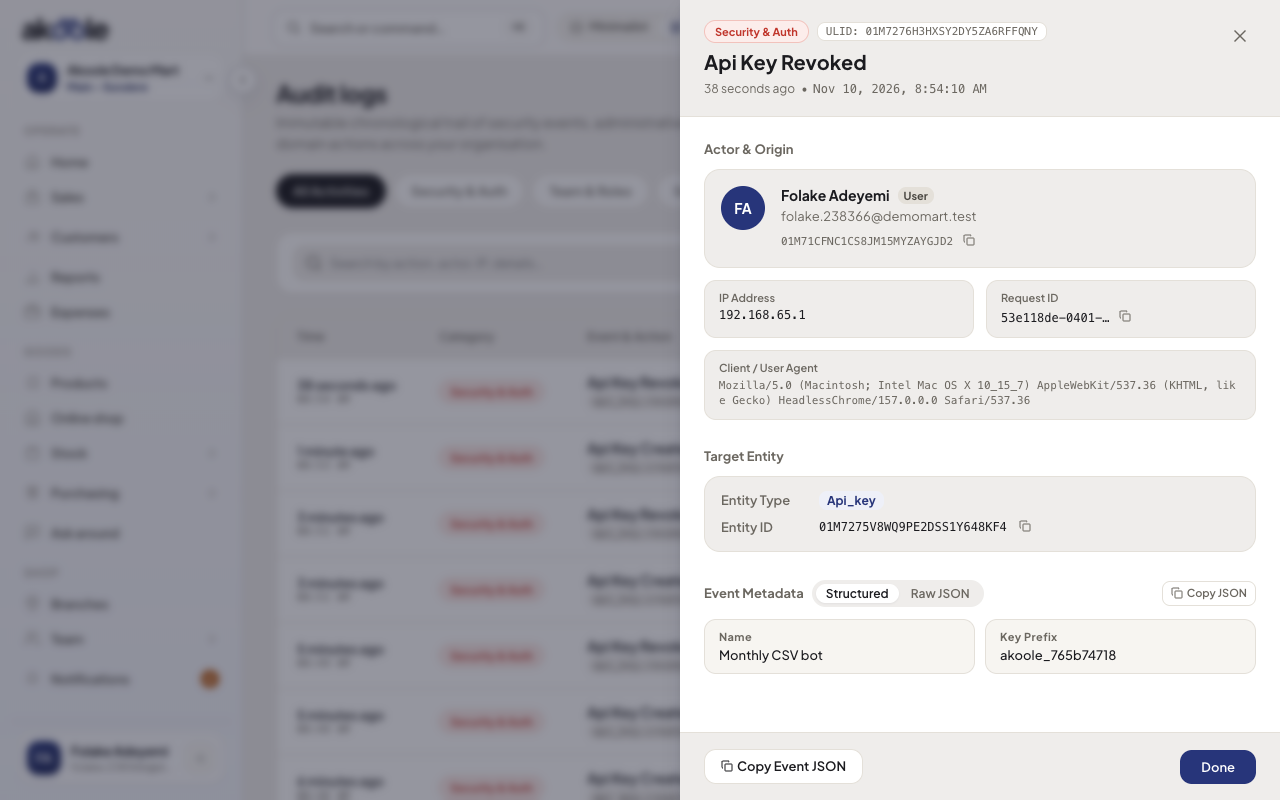
Inspecting one audit entry: who, what changed and the raw record -
Export audit log as CSV
Click Export CSV in the header. The system streams an RFC 4180-compliant CSV download containing your active filtered view with UTF-8 BOM encoding for clean opening in Microsoft Excel and Google Sheets.
-
Navigate pages
Use the pagination bar at the bottom of the table to navigate backward and forward (
Previous/Next), jump back to the first page, or change the page size (10,25,50, or100items per page).
Verification
Section titled “Verification”- Actions such as creating a new API key at
/settings/api-keysor inviting a staff member at/teamappear immediately in the audit feed. - Clicking Inspect displays the exact fields that changed without exposing sensitive credentials (passwords, auth tokens, and raw secrets are automatically redacted server-side).
What can go wrong
Section titled “What can go wrong”- Staff cannot access Audit logs: Ensure their assigned role includes the
org.audit.viewpermission under Team → Roles. By default, Owners, Admins, and Tech Admins have audit access. - Export button disabled: The logged-in staff member needs
org.audit.exportto trigger CSV exports.
- API keys - Generate secure machine tokens for third-party tools.
- Custom roles - Tailor permissions for cashiers, accountants, and store supervisors.