

Minimalist vs Advanced
Turn Minimalist or Advanced on for your login so a Surulere cashier stays on a simple till while you keep Home widgets.
-
Find the mode pill
In the top header, look for Minimalist / Advanced. That pill is the switch. It is not a plan upgrade and not a permission.

Header with the Minimalist / Advanced switch, branch and account -
Switch and wait for the animation
Tap the pill. A short building / deconstructing animation covers the screen, then the layout changes. Give it a second - do not spam-click.
-
Minimalist - counter and pulse
Minimalist is the till-first layout: a four-button launchpad, POS, and today’s live sales pulse. Use this on a cheap Android at the counter so nobody hunts through reports mid-queue.
Show screenshot
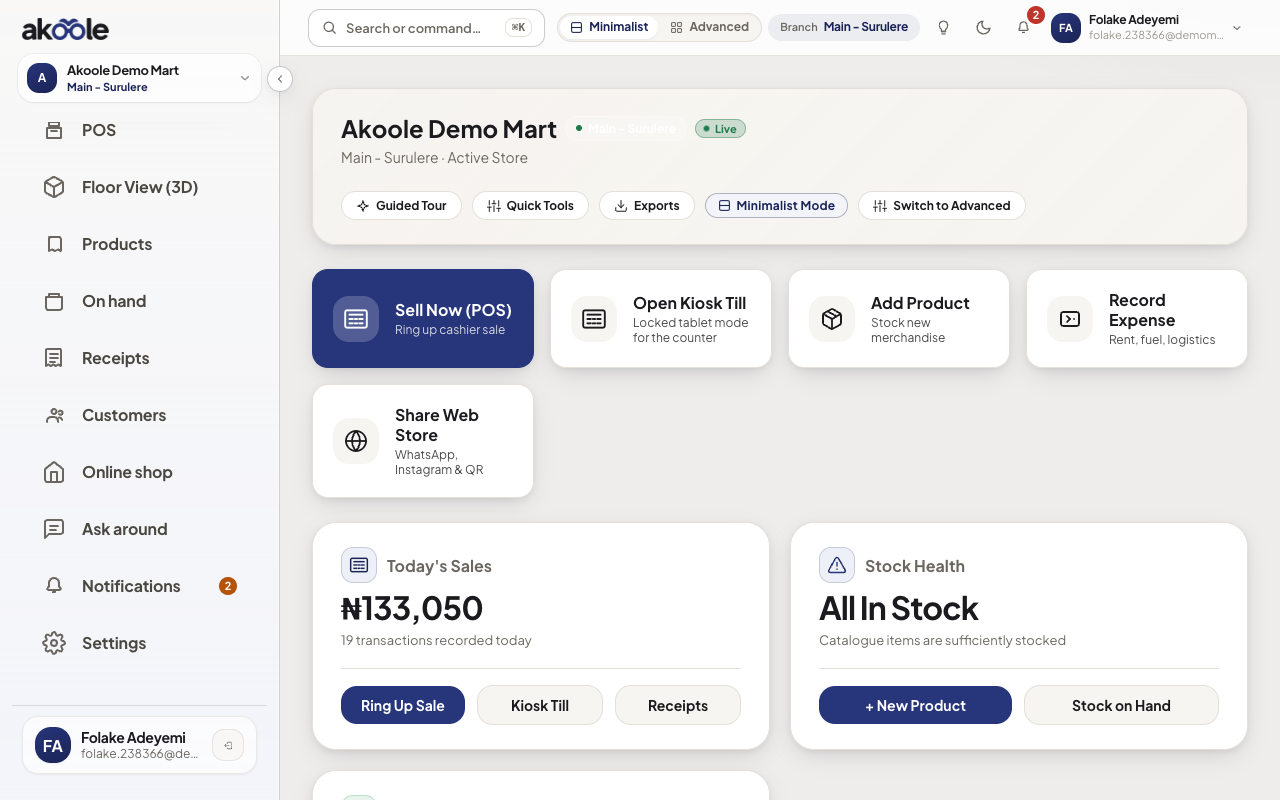
Minimalist Home: the big buttons for everyday work -
Advanced - widgets and the book
Advanced is the owner/manager layout: drag-and-drop Home widgets, richer reports, and (on Growth+) customer debt. Customize Home only in this mode - see Home dashboard.
Show screenshot
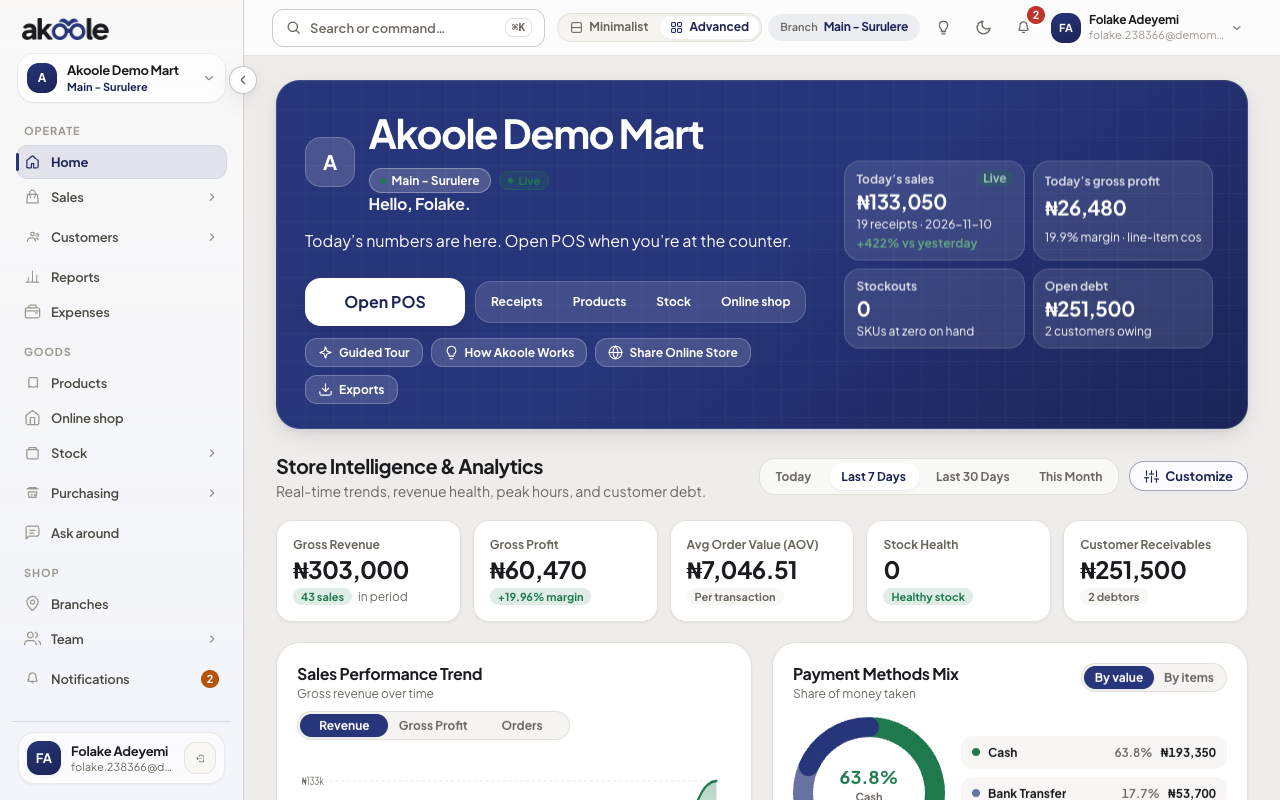
Advanced Home with sales, profit, stock and debt at a glance -
It follows you - and this device
The choice is saved on your user. This laptop also remembers the last mode in the browser. A cashier can stay Minimalist on the counter tablet while you stay Advanced on your phone.
You can also set it under Account → settings.
Show screenshot
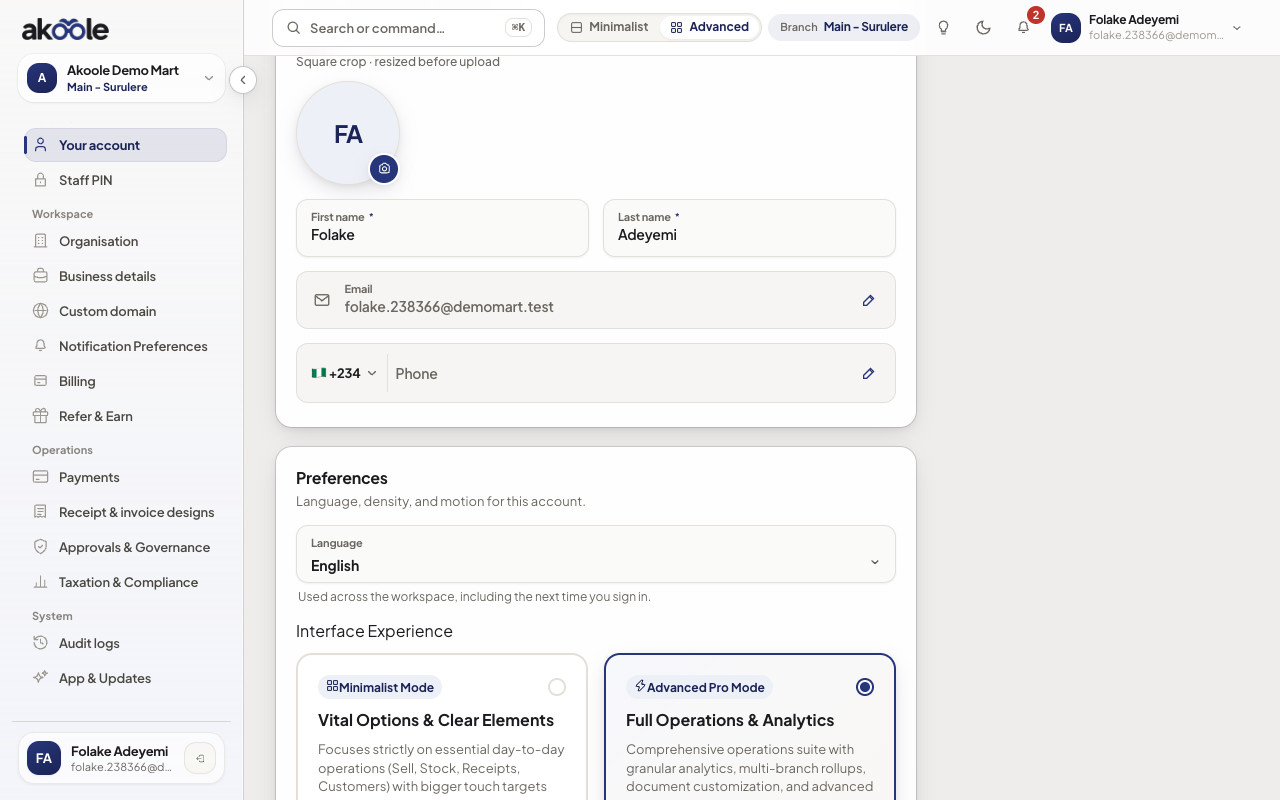
Your account: preferences including appearance and language
If something goes wrong
Section titled “If something goes wrong”I cannot find Customize on Home
Widget customization is Advanced only. Switch mode, then use Customize at the top right of Home.
It flipped back after I signed in on another phone
If that device had never chosen a mode, it may pick up the mode stored on your account. Set the pill once on the new device.