

Add a product
You add one product so cashiers at Demo Mart Surulere can scan it and sell it in naira.
-
Open Products
In the staff app, go to Products. This list is every SKU you sell - not a separate “catalogue” screen. Tap Add product.
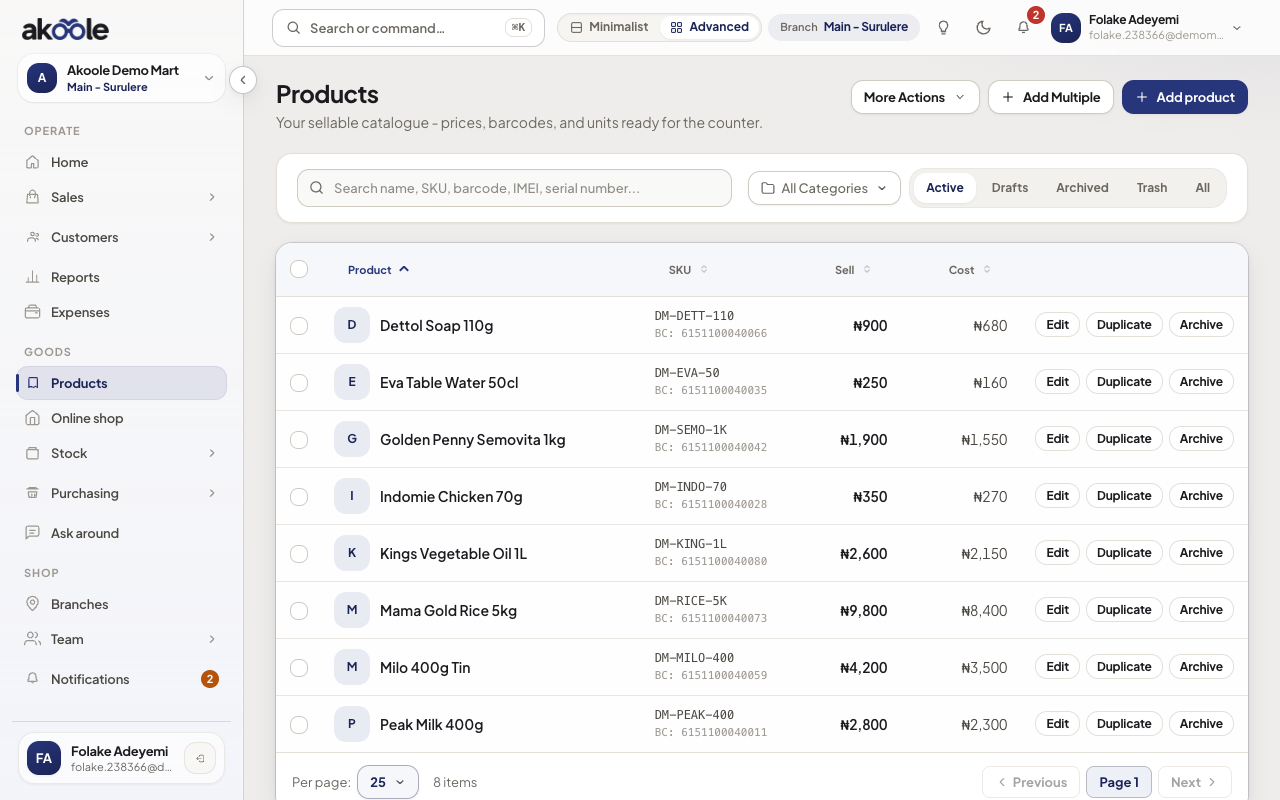
Products list at Akoole Demo Mart with Add product -
Name it and scan the barcode
Enter a name cashiers will recognise, for example Indomie Chicken 70g. Type or scan the EAN/UPC into Barcode. Add an SKU if you use your own codes.
Show screenshot
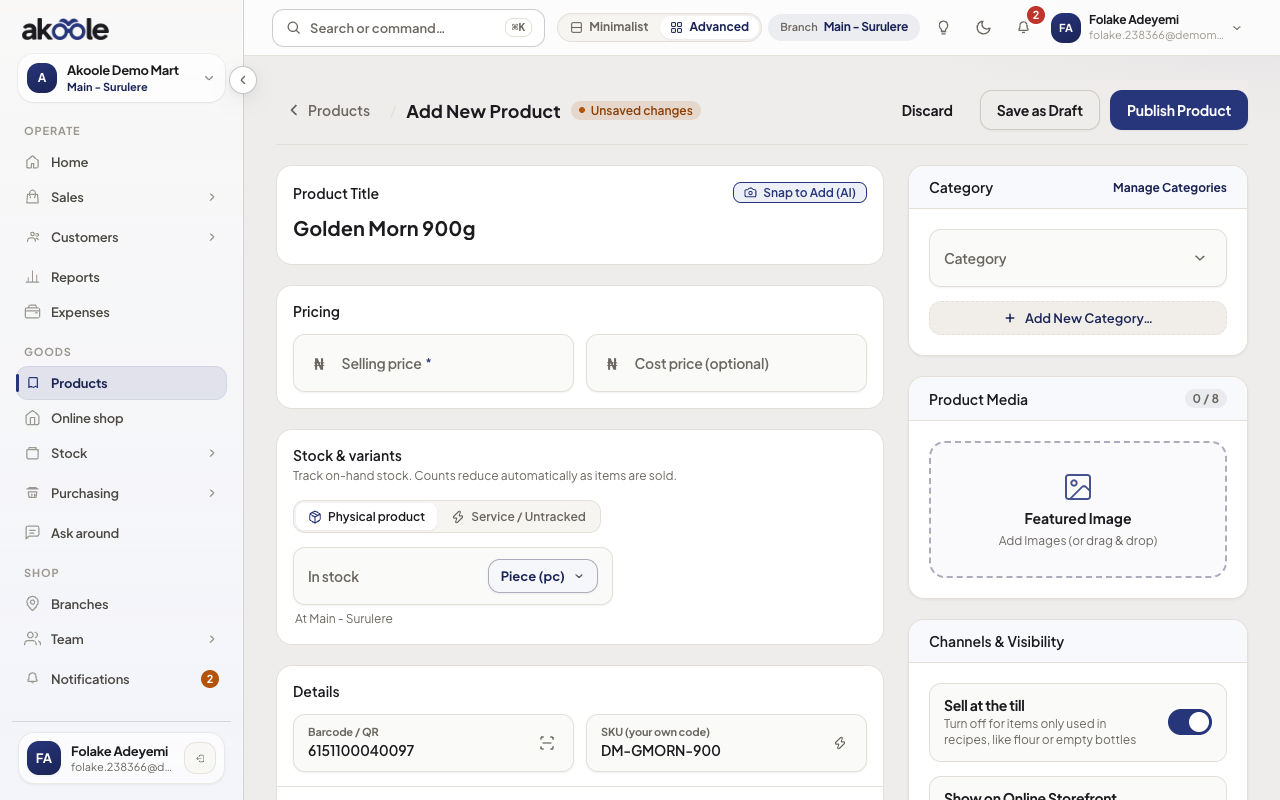
New product: name, barcode and your own SKU -
Set cost, prices, floor, and reorder
Enter cost (what you paid). Set retail for walk-in shoppers and wholesale (or wholesale tiers) for traders who buy cartons. Optional floor price is the lowest the till can haggle without Override floor price - it is hidden from customers and from the public shop. Set reorder level so you get a low-stock warning before the shelf is empty. Cashiers never see cost on POS.
Show screenshot
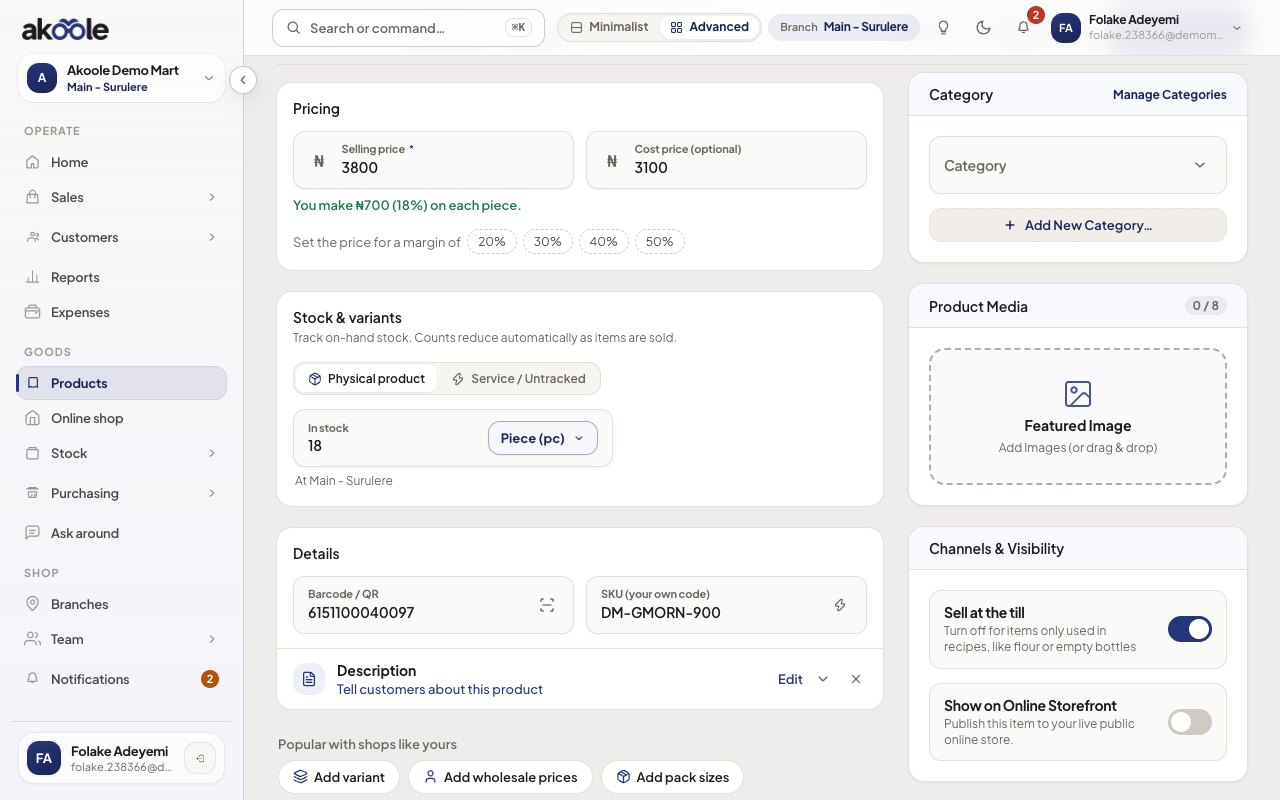
Selling price ₦3,800 and cost ₦3,100, with stock on hand -
Add a photo and shop visibility
Upload a clear pack photo. Leave Show on online shop off until you are ready for
{slug}.akoole.shop(Growth and above). On Starter, the product still sells at the counter.Show screenshot
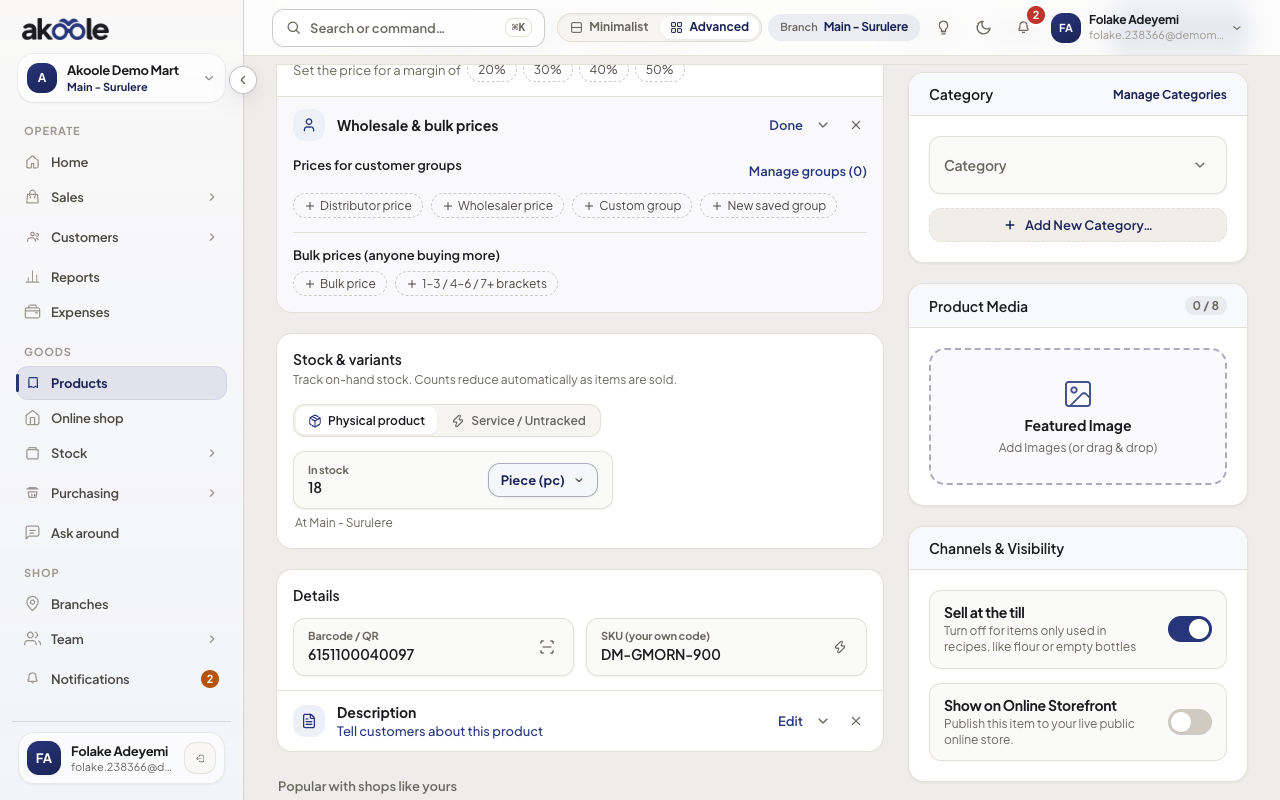
Product media and the online shop visibility switch -
Save
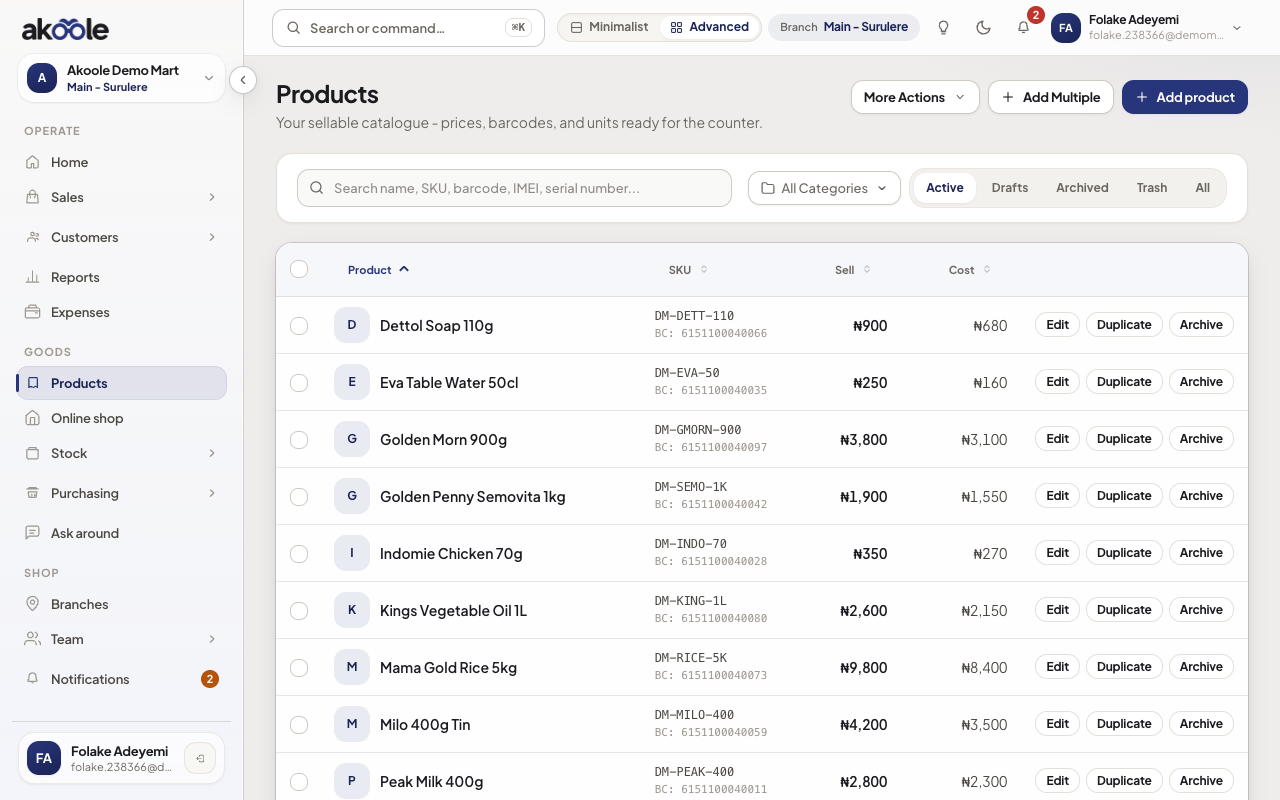
Tap Save. The product appears in the list and is available on POS for Surulere once you have on-hand stock.
Show screenshot
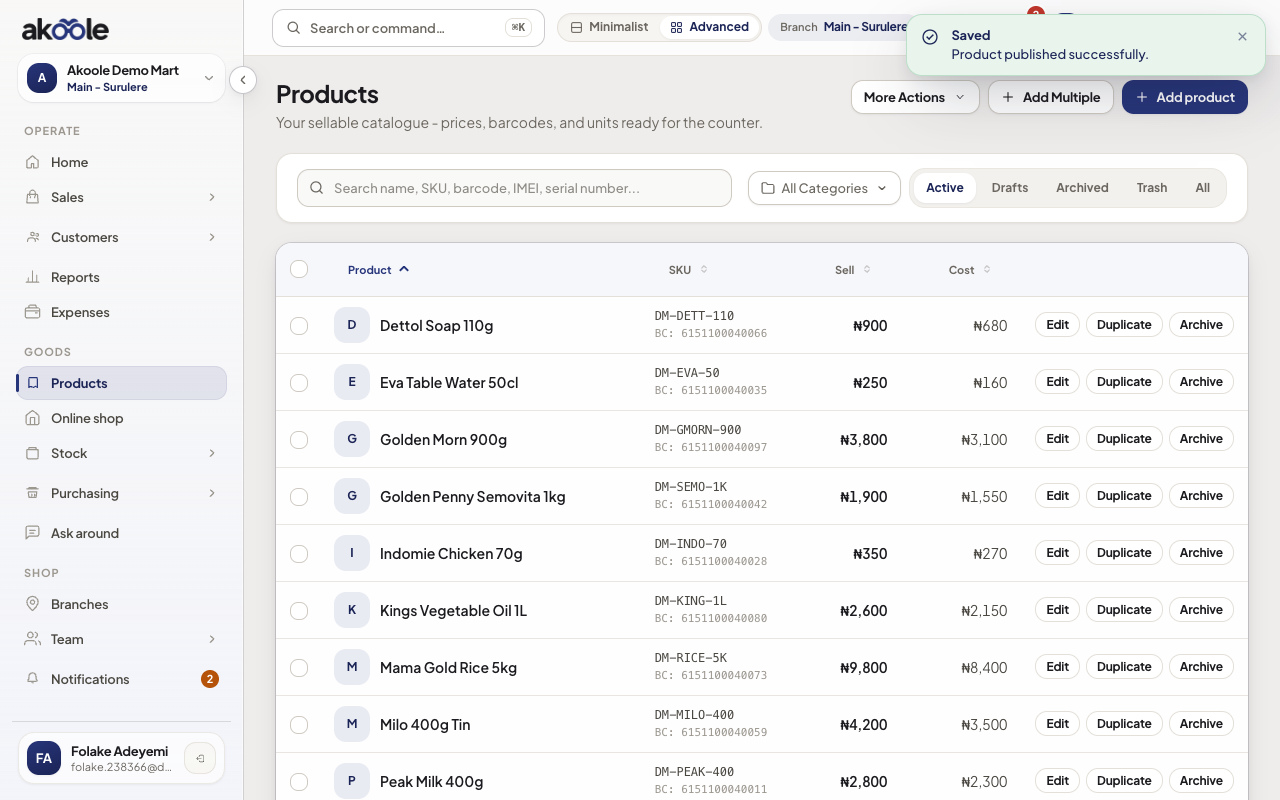
Product saved: Golden Morn 900g with its prices and barcode
Show screenshot
If something goes wrong
Section titled “If something goes wrong”Barcode already exists
Akoole rejects duplicate barcodes. Search Products for the code and edit the existing SKU instead of creating a second one.
Cashier says they cannot find it on POS
Confirm the product is not archived, belongs to this shop, and has on-hand stock (or is allowed to sell without stock). Open a shift before selling.